

Here are ten VS Code extensions I use for formatting, debugging, testing APIs, and working with Git. I’ll show what each does and how to use it.
Top 10 Popular Extensions in 2024
Indent Rainbow
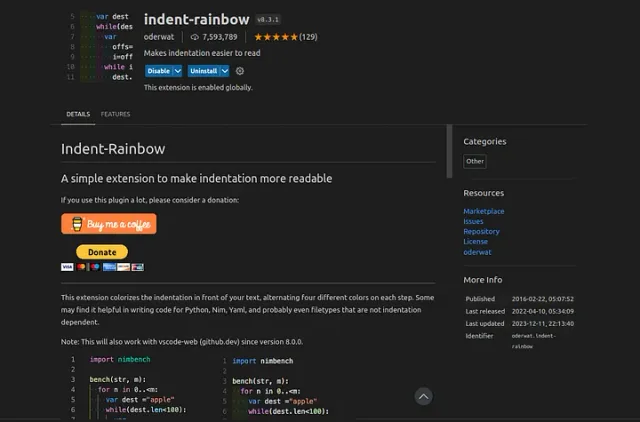
Next is Indent Rainbow, which makes it easier to read code by color-coding each indentation level. This visual differentiation enhances readability and can significantly improve your coding efficiency.
Prettier
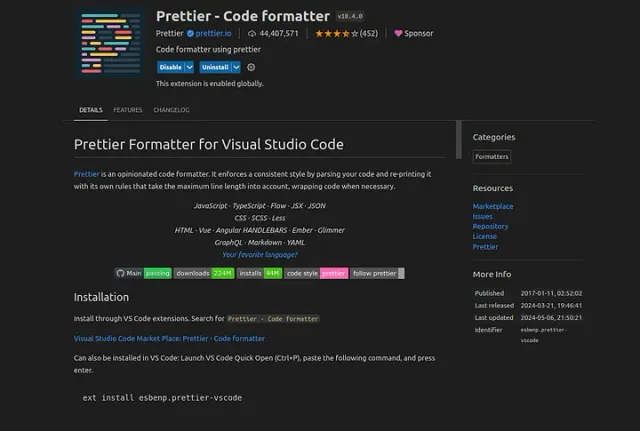
Prettier is another must-have. This extension automatically formats your code, supporting a wide range of languages from HTML to JavaScript. Simply press Ctrl+Shift+I to beautify your code instantly.
Thunder Client
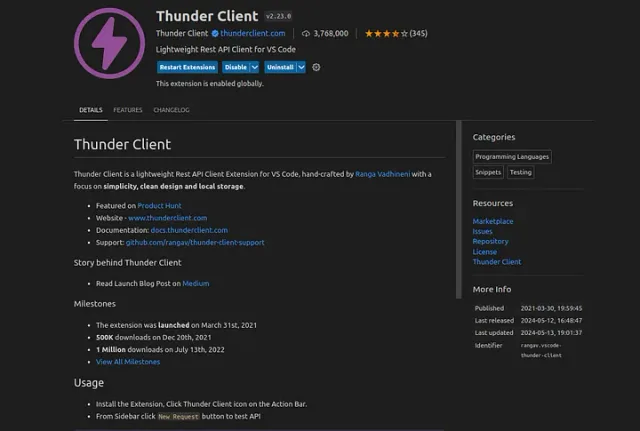
Thunder Client lets you test API endpoints inside VS Code. You can send requests, inspect responses, and manage parameters without opening a separate app.
Turbo Console Log
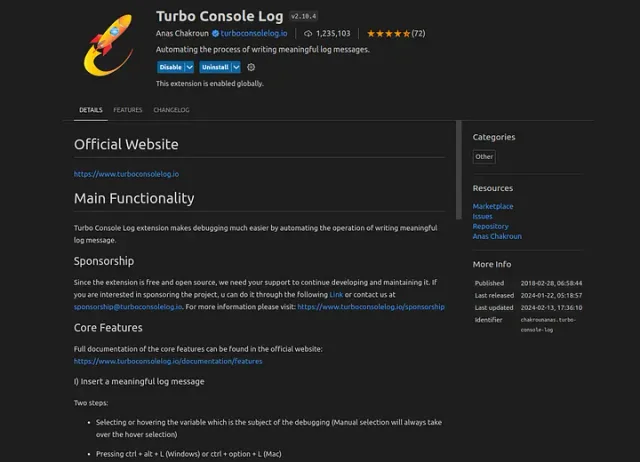
Turbo Console Log provides shortcuts for inserting and managing console.log statements while debugging JavaScript.
GitHub Copilot Extension
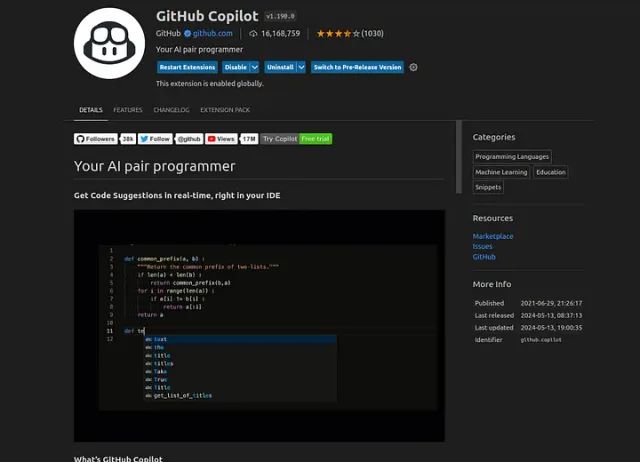
GitHub Copilot, powered by AI, suggests code as you type, speeding up your development process significantly. It can even help write entire functions, classes and predict the next part of the code.
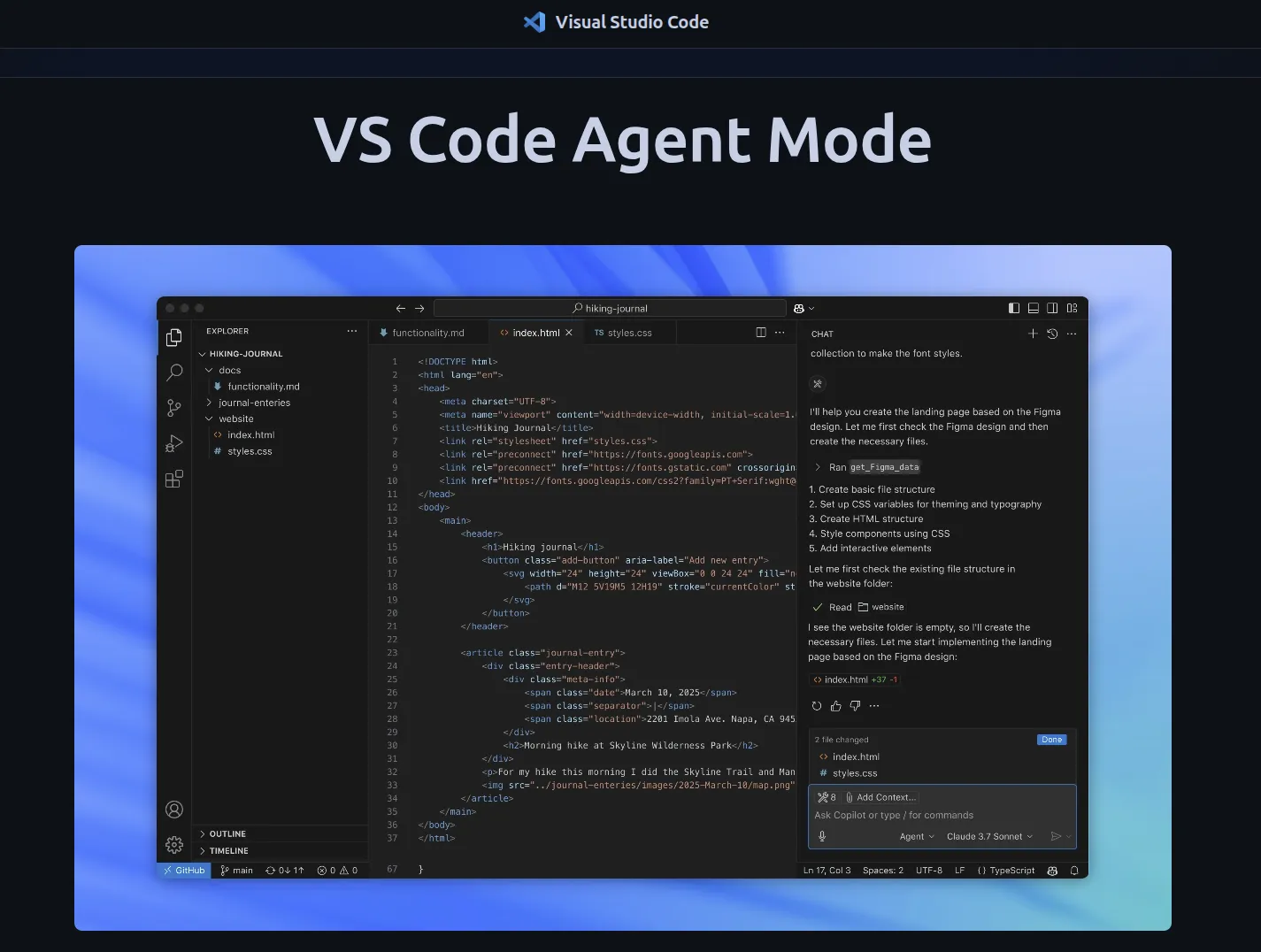
For tasks that span multiple files, try the Copilot Agent Mode walkthrough.
Live Server
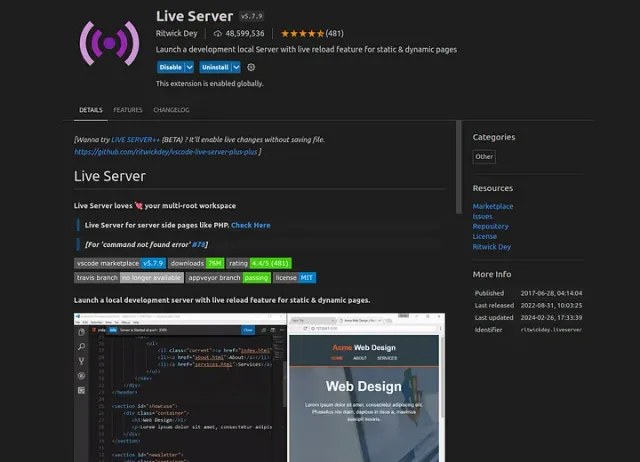
Live Server is a fantastic tool for web developers. It allows you to see real-time changes to your web pages as you edit your code, simulating a live environment right from your editor.
Import Cost Extension
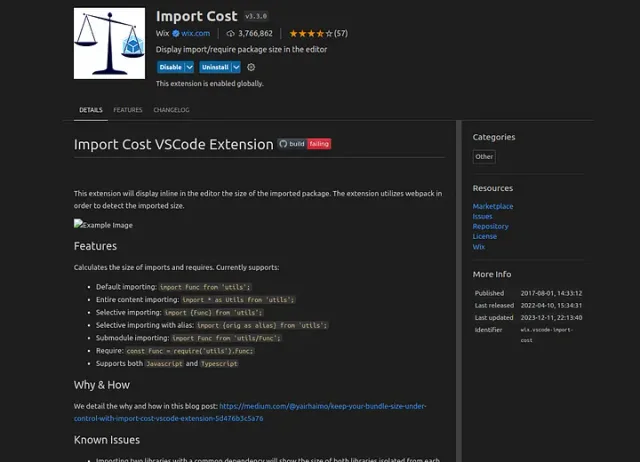
Import Cost displays the size of the packages you import, helping you keep your applications lightweight. It’s particularly useful for optimizing performance in frameworks like React, Vue, or Angular.
GitLens
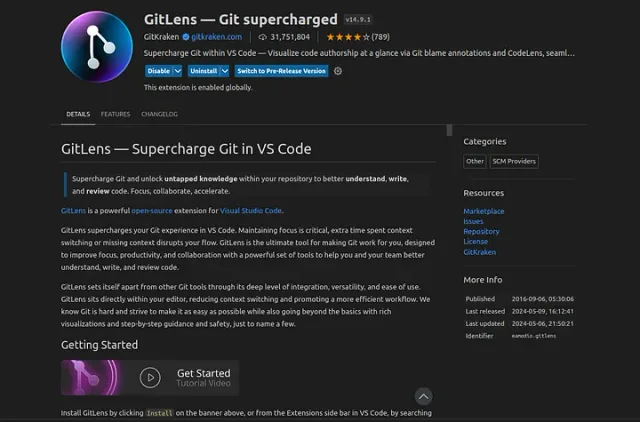
GitLens enhances your version control experience by showing who made changes, when, and what those changes were, directly in your editor. It’s incredibly helpful for collaborative projects.
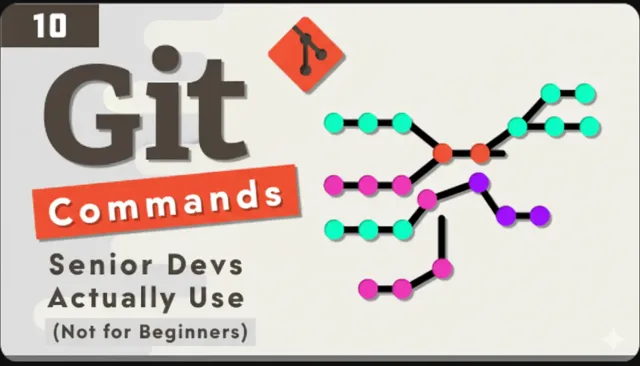
For the terminal side of working with history and branches, see the advanced Git commands guide.
Error Lens and Code Spell Checker
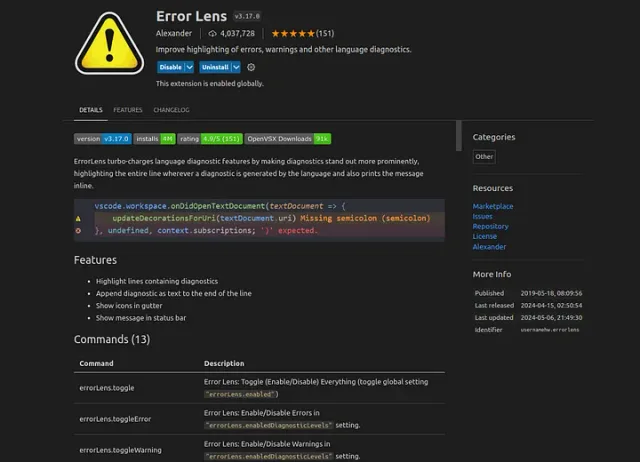
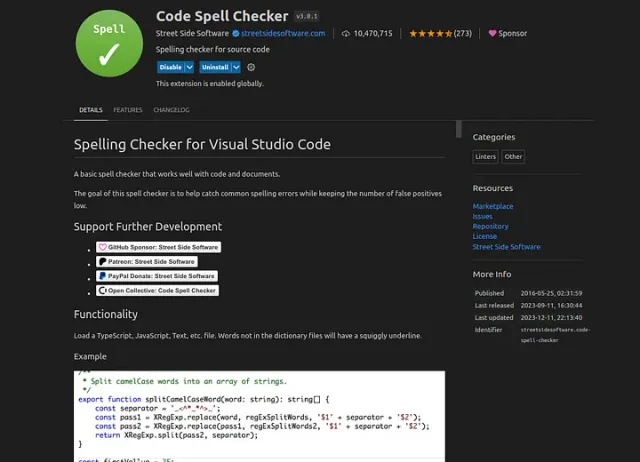
Error Lens highlights errors next to the code. Code Spell Checker flags spelling mistakes in identifiers, comments, and text.
I hope you find these tools as beneficial as I have. If you enjoyed this article, please like and share your feedback. Also, let me know your favorite VS Code extensions; I’m always eager to learn about new tools.
Don’t forget to subscribe for more content, and share any topics you’d like me to cover in future articles.