As a creator who relies on AI to help draft my blog posts, I kept running into a frustrating issue. When I'd copy text from ChatGPT, Claude, Gemini, etc, it looked perfect, but there was something hidden: invisible characters.
These aren't your typical letters or symbols. They are special Unicode characters, like zero-width spaces (U+200B) or format-control characters, that don't show up on your screen. AI providers sometimes embed these hidden characters into the text they generate, creating a sort of digital watermark to track the content's origin. While clever, this can cause major headaches for writers, developers, and anyone who needs clean, reliable text.
That's why I created the "Invisible AI Character Detector & Remover," a free and simple Google Chrome and VS Code extension to help you find and eliminate these hidden troublemakers.
 )
)
What It Does: Your Personal Hidden Unicode Cleaner
My extension is designed to make your text clean, safe, and predictable. It's a powerful tool to detect and remove invisible characters and sanitize your documents.
-
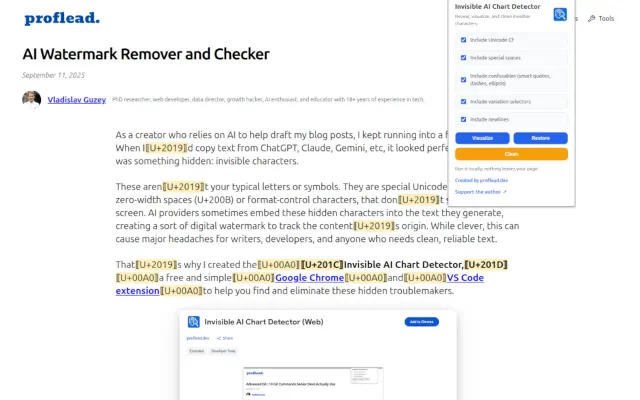
Detect and Visualize: The tool scans your document and instantly highlights any invisible characters. It makes them visible by temporarily replacing them with a clear marker, like [U+XXXX], so you can see exactly where the hidden problems are.
-
Clean and Normalize: With a single click, the "Invisible AI Character Detector & Remover" can clean your text. It strips away all invisible characters like zero-width spaces and Byte Order Marks (BOMs). It also normalizes your text by replacing "fancy" typography (like curly quotes or em-dashes) with standard, safe ASCII characters.
How to Install The Extension
Getting started takes less than a minute. You can add it directly to your favorite work environment.
For Visual Studio Code:
- Open VS Code and navigate to the Extensions view (Ctrl+Shift+X).
- Search for "Invisible AI Character Detector & Remover" in the marketplace.
- Click the "Install" button to add it to your editor.
For Google Chrome:
- Visit the Chrome Web Store.
- Search for "Invisible AI Character Detector & Remover".
- Click "Add to Chrome" to install the extension in your browser.
How to Use It for Clean Text
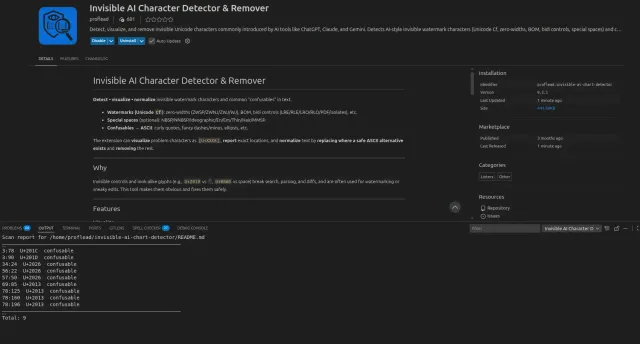
Once installed in VS Code, you can use the Command Palette (Ctrl+Shift+P) to access its powerful features:
- Toggle Visualize: Use this command to see where the invisible characters are hiding in your text.
- Scan & Report: This will generate a clean report in the output panel, listing all the hidden characters it found without modifying your file.
- Clean In Place: This command instantly removes invisible characters from your current file, making your text clean and safe.
- Clean & Save Copy: This is the safest option. It creates a new, cleaned version of your file while leaving your original document untouched.
I hope it helps you streamline your AI-assisted workflows! And if it was helpful, please don't forget to give a 5-star rating! :)
And if you want to contribute to the extension, you can do it on my GitHub project.
Cheers! ;)