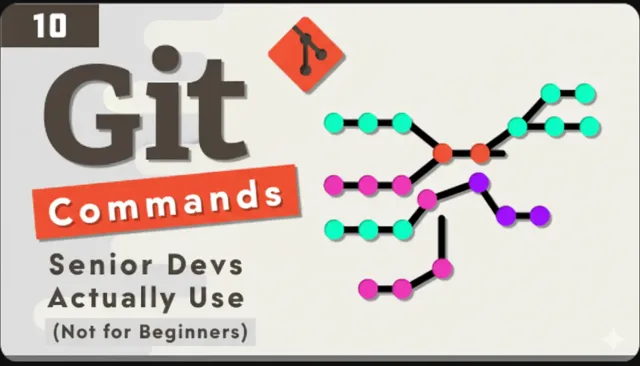

Here are ten Git commands for inspecting changes, working with branches, and managing commits. I’ll explain what each does and when I use it.
Stage and Commit in One Command
Instead of using two separate commands to stage your modified files and then commit them, you can do it all in one go.
Normally, you would use git add . followed by git commit -m “message”. But you can combine these into a single, efficient command:
git commit -am "message"
This command stages modified and deleted tracked files, then commits them with your message. Add new files with git add first.
Create and Switch to a New Branch
Here’s another great shortcut. To create a new branch and immediately switch to it, you can combine two commands into one. Instead of git branch
git checkout -b <new-branch>
This single command creates the new branch and switches your working directory to it.
Rewrite the Most Recent Commit
If you need to change the most recent commit, you can use the amend command. This is useful for changing the commit message or adding more changes to the last commit. You can also use a shortcut to directly change the commit message in one line:
git commit --amend
git commit --amend -m "new message"
View a File from Another Branch
To view a file from another branch without switching branches, use:
git show <branch-name>:<file-name>
For example, to see the README.md file from the main branch, you would use:
git show main:README.md
Sort Branches by Commit Date
To sort branches by their most recent commit date, use:
git branch --sort=-committerdate
You can even set this as your global default with:
git config --global branch.sort -committerdate
Undo a Commit While Keeping Changes
If you want to undo the last commit but keep all the changes in your working directory, this is the command for you.
git reset --soft HEAD~1
The git reset --soft HEAD~1 command moves HEAD back one commit and keeps the changes staged, ready to be committed again.
Reset commit history and optionally discard or keep changes
Moves the HEAD pointer back one commit and unstages the changes, leaving them in your working directory.
git reset --mixed HEAD~1
Moves HEAD back and discards both the staged and working directory changes.
git reset --hard HEAD~1
These commands combine history manipulation with controlling what happens to your local modifications.
Enhanced Logs
The default git log can be a bit plain. You can get a more detailed and visually appealing log with these commands:
This shows the commit message, which files were changed, and how many lines were added or removed.
git log --decorate --stat
This provides a compact, graphical view of your commit history, making it easier to see branches and merges.
git log --graph --oneline --decorate
Video Tutorial: Git Commands with Examples
Watch on YouTube: Git Commands for Pro
Conclusion
I hope you found these advanced Git commands helpful. If you liked this tutorial, please give it a thumbs up and share it with other developers.
If you want to share other useful commands, please do it in the comments below!
Cheers! ;)