I’ve been trying Google AI Studio to test Gemini models and build small AI projects. This guide covers its main controls and shows how to run your first prompt.

What is Google AI Studio?
Google AI Studio is a web-based tool provided by Google that lets you interact with Google’s large language models (LLMs) like Gemini. It’s designed to be user-friendly, allowing you to quickly prototype and test AI applications without needing extensive coding knowledge. Think of it as a sandbox where you can experiment with prompts, fine-tune models, and see your ideas come to life.
Think of it as a toolbox that lets you talk to Google’s AI.
- It’s designed for everyone, regardless of coding expertise.
- You can try out ideas and see what’s possible with AI.
- Experiment with different instructions to get the AI to do what you want.
- Build your own AI apps and projects.
- Connect with other Google Cloud services.
- Etc.
How to Use Google AI Studio
The initial steps are surprisingly simple. Start by visiting the Google AI Studio website and signing up for an account. If you already have a Google account, you can use that to log in directly.
Once you’ve signed in, you’ll find yourself at the main dashboard. Navigation is intuitive, with clear menu items and options that lead you to the different functionalities Google AI Studio offers.
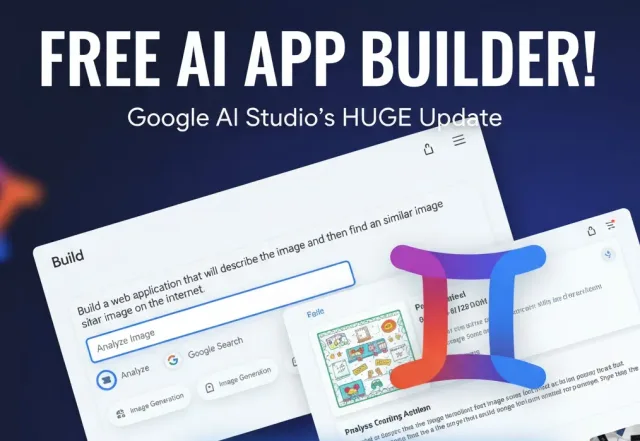
To turn an idea into a working app, follow my AI Studio Build walkthrough, which takes an image-search app from a prompt to a preview.
In this tutorial, we’ll be focusing on these five sections:
- Create Prompt
- Stream Realtime
- Starter Apps
- Tune a model
- Prompt Gallery

Create Prompt
The “Create Prompt” section in Google AI Studio is where you write instructions for the AI, letting you tailor its responses to specific tasks or conversations, much like teaching it what you want, and it offers different ways to write these instructions, similar to how OpenAI’s Playground allows you to experiment and find the best approach.
- Click on the link “Create Prompt” in the left menu.
- Define System Instructions. Specify the role or behavior you want the AI to adopt. For example: You are a friendly chatbot that provides concise and helpful responses.
- In the “Type something” input box, enter a sample user query to see how the AI responds based on your instructions. For instance: Can you recommend a good book?
- Adjust the system instructions or input prompts to fine-tune the AI’s responses to better suit your requirements.

Model Settings
You will see the “Model Settings” panel in the right menu. There, you configure parameters for model execution.

- Get code: This allows you to retrieve the code generated by the model, presumably for integration into your own projects.
- Model: Specifies which language model will be used to process your prompt. The current selection is “Gemini 2.0 Flash”. Different models offer varying strengths and weaknesses, and may be suited for different types of tasks.
- Token count: This shows how many tokens your prompt and the model’s response are using.
- Temperature: Controls the randomness of the model’s output. A value closer to 0 makes the output more deterministic and focused, while a value closer to 1 (as shown here) makes the output more creative and potentially surprising.
Tools: This section groups together options for enabling specific functionalities that the model can utilize during its processing.
- Structured output: The model can produce output in a structured format, like JSON or XML, making it easier to parse and use in code.
- Code execution: Allows the model to execute code snippets. This is useful for tasks that require computation or interaction with external systems.
- Function calling: Enables the model to call pre-defined functions to perform specific tasks. This extends the model’s capabilities by allowing it to interact with external tools and services.
- Grounding with Google Search: Allows the model to access and use information from Google Search to provide more informed and up-to-date responses.
Media Input Menu
You would use this media input menu whenever you need to incorporate external data, media, or specific modalities (audio, images, video) into your interaction with the AI model in Google AI Studio.
For a project that handles image input in your own code, see how to build an image analyzer with the Gemini API.

Allow Drive access:
- Use Case: When you want to use files already stored in your Google Drive as input for your prompt. This is useful for analyzing documents, spreadsheets, or other data files that you have stored on Drive.
- Example: You have a text file in Drive containing customer reviews, and you want to use the AI model to analyze the sentiment of those reviews.
Upload File:
- Use Case: When the file you want to use is stored locally on your computer and not yet on Google Drive. This could be a text document, a code file, a dataset, or any other file type relevant to your task.
- Example: You have a CSV file on your desktop containing sales data, and you want to use the AI model to perform trend analysis.
Upload Image:
- Use Case: When you want the AI model to analyze the content of an image. This could be for tasks like image captioning, object detection, visual question answering, or image editing.
- Example: You upload a picture of a building and ask the AI model to identify the architectural style.
Record Audio:
- Use Case: When you want to use real-time spoken input as the basis for your prompt. This is useful for tasks like speech-to-text transcription, voice-controlled applications, or analyzing the content of a spoken message.
- Example: You record a voice note asking the AI model to set a reminder for you.
Take a photo:
- Use Case: Similar to uploading an image, but allows you to capture a photo directly using your device’s camera and use it as input for the AI model.
- Example: You take a picture of a handwritten note and ask the AI model to transcribe it into digital text.
YouTube Video:
- Use Case: When you want the AI model to analyze the content of a YouTube video. This could be for summarizing the video, answering questions about it, extracting key information, or generating captions.
- Example: You provide a link to a YouTube tutorial and ask the AI model to summarize the steps involved.
Sample Media:
- Use Case: When you want to quickly explore the capabilities of the AI model and its ability to process different types of media, without needing to find or upload your own files. This is a great way to learn how the model works and experiment with different prompts.
- Example: You want to see how well the AI model can caption images, so you use one of the sample images to test its performance.
Use this menu to choose the input type for your prompt, such as text, images, or files.
Examples of When to Use Model Settings
Model selection affects response speed and quality. Try a faster model such as Gemini 2.0 Flash for low-latency tasks. Compare it with a model such as Gemini 1.5 Pro on a task that needs more detailed reasoning, and check the results.

Structured Output is useful when your application needs a predictable format, such as JSON for extraction or an API request. Leave it off when you want ordinary prose, such as an email or a summary.

The Code Execution toggle lets the model run code for tasks such as calculations, data analysis, and plotting. Leave it off for writing tasks that do not need computation, and review code execution carefully when working with untrusted input.

The Grounding with Google Search becomes essential when you need the model to provide up-to-date, factual, and well-informed answers, especially for topics requiring real-time information or knowledge beyond the model’s training data. Enable it when answering questions about current events, finding information on specific topics, providing recommendations based on user preferences (like restaurants), or verifying claims. When you want the model to rely solely on its internal knowledge for creative tasks or to test its knowledge without external assistance, or when dealing with sensitive data where you don’t want external queries, disable grounding with Google Search. This is applicable for writing fictional stories, generating poems, brainstorming slogans, or working with confidential information.
The Grounding with Google Search is off:

The Grounding with Google Search is on:

Google AI Studio: Stream Realtime
Google AI Studio’s Stream Realtime feature lets you talk with Gemini using voice and video.
There are these options available:
- Talk to Gemini: Enables voice-based conversations using your microphone.
- Show Gemini: Shares your webcam feed to give Gemini a view of what you’re looking at, facilitating real-time feedback.
- Share your screen: Enables Gemini to view your screen, allowing it to assist with tasks or provide insights on what you’re working on.
If you want to learn more about Stream Realtime, I have a dedicated video tutorial about Google AI Studio: Stream Realtime.
Other Sections: Starter Apps, Tune a Model, and Prompt Gallery
While the core functionality of Google AI Studio lies in prompt creation and real-time interaction, the Starter Apps, Tune a Model, and Prompt Gallery sections offer valuable resources for learning and development. These sections provide practical examples, customization options, and inspiration, which can be particularly helpful for understanding Google’s AI capabilities and refining your workflow.

- Starter Apps: This area provides pre-built application templates and code samples, designed to help developers quickly get started with Google AI-powered projects. It reduces the initial development effort by offering ready-to-use examples that demonstrate how to integrate Gemini into various applications. These templates cover common AI use cases, such as chatbots and text summarizers, and come with code examples and deployment guides, making it easy to launch prototypes and learn how to use the Gemini API.
- Tune a Model: Adapt a supported model to a specific task using your dataset and tuning settings. Evaluate it on held-out examples to check whether the changes help.
- Prompt Gallery: The Prompt Gallery is a showcase of various example prompts that demonstrate the diverse capabilities of Gemini. It serves as a source of inspiration and guidance for crafting effective queries. By exploring these examples, you can learn prompt engineering techniques and discover new use cases for Gemini. The gallery is organized by use case and task, making it easy to find relevant examples and learn how to craft prompts that elicit desired responses.
Google AI Studio Pricing
Google AI Studio itself is offered completely free of charge. However, the Gemini API, which you can use in conjunction with AI Studio, has both a free tier for testing with lower rate limits and a paid tier with higher rate limits and additional features.
Here’s a summary of the pricing for the paid tier of the Gemini API, in USD per 1 million tokens:
- Gemini 2.0 Flash: Input: $0.10 (text/image/video), $0.70 (audio); Output: $0.40
- Gemini 2.0 Flash-Lite: Input: $0.075; Output: $0.30
- Imagen 3: Image: $0.03 per image
- Gemini 1.5 Flash: Input: $0.075 (prompts <= 128k tokens) / $0.15 (prompts > 128k tokens); Output: $0.30 (prompts <= 128k tokens) / $0.60 (prompts > 128k tokens)
- Gemini 1.5 Flash-8B: Input: $0.0375 (prompts <= 128k tokens) / $0.075 (prompts > 128k tokens); Output: $0.15 (prompts <= 128k tokens) / $0.30 (prompts > 128k tokens)
- Gemini 1.5 Pro: Input: $1.25 (prompts <= 128k tokens) / $2.50 (prompts > 128k tokens); Output: $5.00 (prompts <= 128k tokens) / $10.00 (prompts > 128k tokens)
For the most up-to-date and detailed information, you can always refer to the Gemini API Pricing page.
Video Tutorial about Google AI Studio
If you want to see how to use Google AI Studio in action, please watch my YouTube video.
Watch on YouTube: Google AI Studio Tutorial
Conclusion
You’ve seen how to choose a model, adjust its settings, and run a prompt in Google AI Studio. Try the same task with two settings and compare the results.
If you try it, share your feedback in the comments below!
Cheers! ;)