


OpenAI Codex CLI now has an Agents Dashboard for managing several tasks from one terminal. It also has a codex queue command that lets you send a new instruction to an existing Codex task from another terminal.
This is useful when you run more than one Codex task at the same time. You no longer need to remember which terminal contains each task. You can open one dashboard, see which tasks are working or waiting for you, and jump to the task you need.
For work that a parent task delegates to other agents, see the Codex subagents guide. It explains how to divide a job into focused tasks.
In this guide, I will show you how to:
- Install or update Codex CLI
- Open the Agents Dashboard with
codex agents - Open the same dashboard from a Codex session with
/agents - Navigate, search, open, rename, and stop tasks
- Find a task's session ID
- Send new instructions with
codex queue - Fix the most common errors
You can also watch my short video demo here: OpenAI Codex Agents Dashboard and codex queue.
What Is the Codex Agents Dashboard?
The Agents Dashboard is an interactive command center inside Codex CLI. OpenAI added it in Codex CLI 0.149.0, released on August 20, 2026.
The dashboard gives you one place to manage local Codex tasks. It can show tasks that:
- Need your input
- Are still working
- Are ready for you to review
You can also start a new task, search existing tasks, open a task, rename it, or stop it.
OpenAI uses several words for the same basic object. You may see task, session, thread, or chat in the interface and command help. In this tutorial, I use "task" for the work you see in the dashboard. The codex queue command uses the option name --thread, but it accepts a session UUID or an exact session name.
What Is codex queue?
codex queue sends a message to a Codex session that already exists.
If the task needs a persistent objective and clear completion criteria, read the Codex /goal walkthrough before deciding what instruction to send.
For example, imagine Codex is working on a website in one terminal. From a second terminal, you can send this instruction:
codex queue --thread "website-redesign" --message "After the build passes, also check the mobile layout."
You do not need to open that task first. Codex finds it by its exact name or session ID and adds your message to the task.
This is especially useful when:
- A long task is running in another terminal
- You notice an extra requirement after the task starts
- You want to send instructions from a script
- You manage several tasks from the Agents Dashboard
Requirements
You need:
- Codex CLI 0.149.0 or newer
- A working Codex sign-in
- A terminal on the same machine as your local Codex sessions, unless you use a configured remote app server
Check your installed version:
codex --version
The Agents Dashboard and codex queue were added in version 0.149.0. If your version is older, update Codex before continuing.
Install or Update Codex CLI
Option 1: Use the Codex updater
Recent release builds support this command:
codex update
After the update, check the version again:
codex --version
Option 2: Update an npm installation
If you installed Codex with npm, install the latest package:
npm install -g @openai/codex@latest
The original 0.149.0 release can also be installed directly:
npm install -g @openai/codex@0.149.0
Using @latest is normally better because it includes later fixes.
Option 3: Use the standalone installer on macOS or Linux
OpenAI's current CLI quickstart uses the same installer command for installation and updates:
curl -fsSL https://chatgpt.com/codex/install.sh | sh
Sign in
Run Codex from a project directory:
cd /path/to/your/project
codex
The first time you start Codex, choose an available sign-in method. You can also start the login flow directly:
codex login
Open the Agents Dashboard
There are two ways to open it.
From a normal terminal
Run:
codex agents
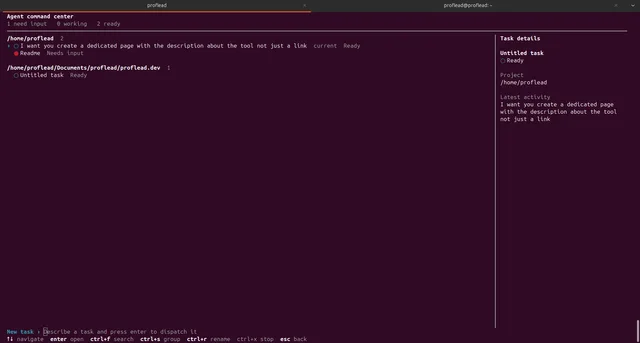
This opens the Agent command center and connects to the shared local Codex app-server daemon.
From an active Codex session
Type this slash command inside Codex:
/agents
This is the fastest way to return to the dashboard after you open a task. It does not start a new shell command. It changes the current Codex terminal view back to the dashboard.
Remember the difference:
| Command | Where to run it | What it does |
|---|---|---|
codex agents |
Your regular terminal | Starts the Agents Dashboard |
/agents |
Inside an open Codex session | Returns to the Agents Dashboard |
Understand the Dashboard
At the top, the dashboard shows summary counts such as:
- Need input: Codex is waiting for a decision, approval, or answer
- Working: The task is currently running
- Ready: The task has finished a step and is ready to review
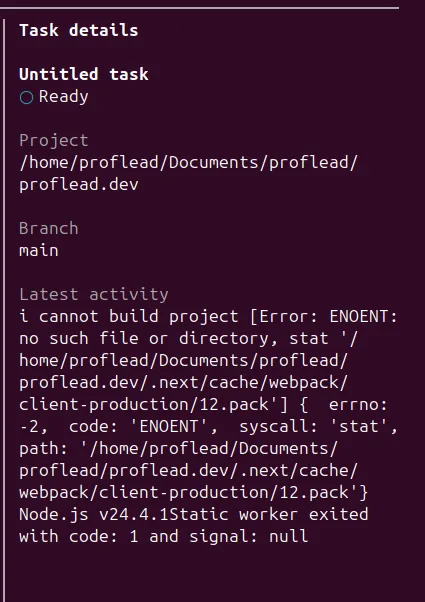
Tasks are grouped by their working directory. This makes it easier to see which project each task belongs to.
At the bottom, the dashboard shows its current keyboard shortcuts. In Codex CLI 0.149.0, the default controls include:
| Shortcut | Action |
|---|---|
| Up / Down | Move through the task list |
| Enter | Open the selected task |
Ctrl+F |
Search tasks |
Ctrl+S |
Change grouping |
Ctrl+R |
Rename the selected task |
Ctrl+X |
Stop the selected task |

The dashboard also has a New task field. Select it, describe the work, and press Enter to dispatch a new task.
Shortcut keys may become configurable or change in a later release. Always check the footer in your installed dashboard if a key does not work.
Navigate and Open a Task
- Run
codex agents. - Use the Up and Down arrow keys to select a task.
- Press Enter.
- Codex opens the full task transcript.
You can now read its progress, answer a question, approve an action, or add another instruction.
When you want to return to the list, type:
/agents
This workflow is simple:
Terminal -> codex agents -> select task -> Enter -> /agents -> dashboard
Search and Group Tasks
If the list is long, press Ctrl+F and type part of the task name or project name. Search is much faster than moving through a large list with the arrow keys.
Press Ctrl+S to change how tasks are grouped. Grouping by directory is useful when you work on several repositories. The exact grouping choices can depend on your Codex version.
Rename a Task
Good task names make codex queue much easier to use.
Instead of keeping an automatic name such as "Fix the header and then...", use a short unique name such as:
website-mobile-header
Rename from the dashboard
- Open
codex agents. - Select the task.
- Press
Ctrl+R. - Enter the new name and confirm it.
Rename inside the task
Open the task and run:
/rename website-mobile-header
You can also run /rename without a name to open the naming prompt.
Renaming changes the saved task name but keeps the transcript and history.
Use unique names
codex queue --thread accepts an exact session name. If two tasks have the same name, the target can be ambiguous. I recommend using a short name that is unique on your machine.
Good examples:
shop-checkout-tests
api-auth-migration
docs-install-guide
Avoid names that are too general:
test
fix
website
Find the Thread or Session ID
A session ID is the safest target for codex queue because it is unique.
Method 1: Use /status
Open the task and type:
/status
Look for the Session line. It contains a UUID similar to this:
Session: 01a01234-abcd-7890-1234-123456789abc
Copy that value. You can use it with --thread.
Method 2: Exit the task
When you close an interactive Codex session, the CLI normally prints a resume command like this:
To continue this session, run codex resume 01a01234-abcd-7890-1234-123456789abc
The UUID at the end is the session ID.
Name or ID: which should you use?
- Use an exact task name when it is short, clear, and unique.
- Use the session ID in scripts or when names may be duplicated.
Use codex queue
The basic syntax is:
codex queue --thread <SESSION_NAME_OR_UUID> --message <TEXT>
Both options are required.
Example 1: Queue by exact task name
codex queue --thread "website-mobile-header" --message "Also test the menu at 320px width."
Example 2: Queue by session ID
codex queue \
  --thread "01a01234-abcd-7890-1234-123456789abc" \
  --message "Run the full test suite before you finish."
Example 3: Send a detailed instruction
codex queue \
  --thread "api-auth-migration" \
  --message "Do not change the public API. Add a regression test for expired tokens and include the test result in your final summary."
Example 4: Attach an image
The queue command also supports image attachments:
codex queue \
  --thread "website-mobile-header" \
  --message "Match the mobile header to this screenshot." \
  --image "/path/to/header-reference.png"
Example 5: Queue to a remote Codex app server
If your Codex setup already uses a remote app-server endpoint, pass the same endpoint:
codex queue \
  --remote "wss://codex.example.com" \
  --thread "website-mobile-header" \
  --message "Please check the latest review comment."
Remote setups may also require --remote-auth-token-env. Follow your organization's configuration and do not put secret tokens directly in the command.
Why Quoting Matters
The value passed to --thread must be the exact session name or UUID. Put names and messages inside quotes, especially when they contain spaces.
Correct:
codex queue --thread "Fix checkout page" --message "Also test guest checkout."
Risky:
codex queue --thread Fix checkout page --message Also test guest checkout.
Without quotes, your shell splits the name and message into separate arguments.
Quotes do not make a partial name valid. If the task is named Fix checkout page, do not use only checkout or Fix checkout. Use the full exact name or the session UUID.
A Practical Multi-Task Workflow
Here is a workflow I use when several Codex tasks run at the same time.
1. Open the dashboard
codex agents
2. Give every important task a unique name
Use Ctrl+R in the dashboard or /rename inside a task.
For example:
frontend-accessibility
backend-rate-limits
docs-release-notes
3. Watch the status counts
Check Need input first. Those tasks cannot continue until you answer a question or approve an action.
4. Open a task when you need its full context
Select it and press Enter. Use /agents to go back.
5. Use codex queue for a quick extra instruction
From another terminal:
codex queue \
  --thread "frontend-accessibility" \
  --message "Please include keyboard navigation in the final check."
This saves time because you do not need to leave the terminal where you are currently working.
Common Errors and Troubleshooting
codex agents is not recognized
Your Codex CLI is probably older than 0.149.0.
Check it:
codex --version
Then update:
codex update
If you installed with npm:
npm install -g @openai/codex@latest
If the old version still appears, your shell may be finding another Codex installation earlier in its PATH. Run the version check in a new terminal after updating.
/agents is treated like a normal prompt
First confirm that you are typing it inside the interactive Codex CLI, not in your normal shell. If it still does not open the dashboard, update Codex and restart the session.
Error about missing --thread or --message
Both values are required. Use the full command:
codex queue --thread "exact-task-name" --message "Your instruction"
Session or task not found
Check these points:
- Use the full exact task name, including spaces.
- Put the task name in quotes.
- Open the task and copy its UUID from
/status. - Make sure the target task is on the same local Codex app-server daemon.
- For a remote session, use the same
--remoteaddress and authentication settings.
Duplicate task names
Rename one of the tasks, or target the session UUID instead. Unique names are easier for people, but UUIDs are safer for automation.
The queued message does not appear immediately
The result depends on the current task state. An idle session can wake when it receives a queued message. A busy session may handle the instruction after its current work reaches the next safe point.
Open the task from codex agents and check its transcript. Also confirm that your command reported success and that you targeted the correct task.
The dashboard is empty
The dashboard manages sessions available to its connected app-server daemon. If you expected local tasks, make sure you are using the same operating-system user and Codex installation.
Run the built-in diagnostic command:
codex doctor
codex doctor checks installation, configuration, authentication, terminal, app-server, and thread inventory problems.
A task says "Need input"
Open the task and read the latest request. Codex may need:
- Permission to run a command
- An answer to a question
- A decision between options
- Access to a file or service
The dashboard reports the state, but it does not automatically approve actions for you.
The dashboard shortcut does not work
Check the shortcut list at the bottom of the dashboard. OpenAI describes the shortcuts as configurable, so your setup may differ from the defaults shown in this article.
Frequently Asked Questions
Is codex agents the same as /agents?
They open the same dashboard from different places. Run codex agents in your regular terminal. Run /agents inside an active Codex session.
Does the dashboard show Codex Cloud tasks?
codex agents is described as a dashboard for sessions on the shared local app-server daemon. Codex Cloud has separate commands and workflows.
Can I send a message by task name?
Yes. Use the exact session name:
codex queue --thread "exact-name" --message "New instruction"
Can I use a session ID instead?
Yes. Open the task, run /status, and copy the value shown on the Session line. A session ID is unique and is the best choice for scripts.
Can I rename a task without losing its history?
Yes. Use Ctrl+R in the dashboard or /rename <name> inside the task. The saved transcript remains unchanged.
Can codex queue send an image?
Yes. Add --image "/path/to/file.png" to the command.
Can I queue a message to a task on another machine?
Yes, if you already have access to a remote Codex app-server endpoint. Use --remote and the required remote authentication configuration.
What version added these features?
Codex CLI 0.149.0 added the interactive codex agents dashboard and codex queue on August 20, 2026.
Final Thoughts
The new Agents Dashboard makes Codex CLI much easier to use for parallel work. codex agents gives you a clear overview, /agents lets you return to it quickly, and codex queue lets you add instructions without hunting for the correct terminal.
The most important habit is simple: give every important task a short, unique name. Then use the session UUID when you need a reliable target for automation.
If you want to see the workflow in action, watch my video: OpenAI Codex Agents Dashboard and codex queue demo.