Imagine having a personal AI agent running on your computer. It can read files, run commands, automate tasks, and remember your workflows.
In this guide, you will learn how to run OpenClaw with Ollama locally and choose the best local LLM models.
This setup allows you to:
• run AI agents locally
• keep your data private
• avoid cloud API costs
• build powerful automation workflows
By the end of this tutorial, you will have OpenClaw running with a local model using Ollama.
What is OpenClaw?
OpenClaw is an open-source AI agent framework. Unlike a normal chatbot, OpenClaw can perform real actions on your computer.
For example, it can:
• run terminal commands
• read and edit files
• automate workflows
• control browsers
• remember tasks using local memory
OpenClaw acts as a bridge between LLM reasoning models and your operating system.
Why Run OpenClaw with Ollama?
Running OpenClaw with Ollama gives you a fully local AI agent.
-
Full Privacy. All data stays on your computer.
-
No API Costs. You don’t need OpenAI or cloud providers.
-
Faster Performance. Local models remove network latency.
-
Persistent Memory. OpenClaw stores conversations in local Markdown files, allowing long-term memory.
-
Messaging Interface. You can control OpenClaw through:
• Telegram
• Slack
• WhatsApp
This allows you to trigger workflows from your phone.
Best Local Models for OpenClaw
Choosing the right local model is important for reliable agent behavior.
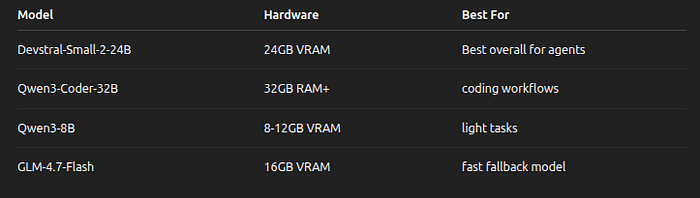
For reliable tool usage, use models 14B or larger. Small models often fail when executing multi-step commands.
How to Install OpenClaw with Ollama
Step 1 — Install Ollama
Install Ollama:
curl -fsSL https://ollama.com/install.sh | sh
Verify installation:
curl http://localhost:11434/api/tags
Then download one of these models from ollama.com website:
- qwen3-coder — Optimized for coding tasks
- glm-4.7 — Strong general-purpose model
- gpt-oss:20b — Balanced performance and speed
- gpt-oss:120b — Improved capability
Example of command:
ollama run qwen3-coder
Step 2 — Install OpenClaw
Install OpenClaw:
curl -fsSL https://openclaw.ai/install.sh | bash
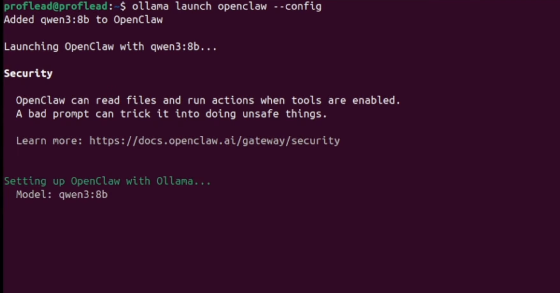
Run OpenClaw with Ollama by using this command:
ollama launch openclaw
Video Walkthrough
{% embed https://youtu.be/dRXWkHSTJG4 %}
Watch on YouTube: How to Set Up OpenClaw with Ollama
Security: The “Kernel Module” Warning
As of the March 2026 security updates, OpenClaw’s broad permissions are a double-edged sword. Because it operates at the kernel/OS level:
- Disable Web Search: For a fully local workflow, toggle search to
falseIn your config, ensure no data snippets are sent to search engines. - Audit Your Logs: OpenClaw saves every action in a local log. Periodically check these to ensure your agent isn’t performing “ghost actions.”
- Human in the Loop: Always keep tool permissions set to “ask” for sensitive commands like
rm -rfor sending external emails.
Conclusion
If you follow the steps in this guide, you should now have a working OpenClaw setup running with a local model.
Try it out, experiment with different models, and see what kinds of workflows you can automate.
And if you discover something interesting, feel free to share it. I’m always curious to see how people are using these tools.
Cheers, proflead! ;)