
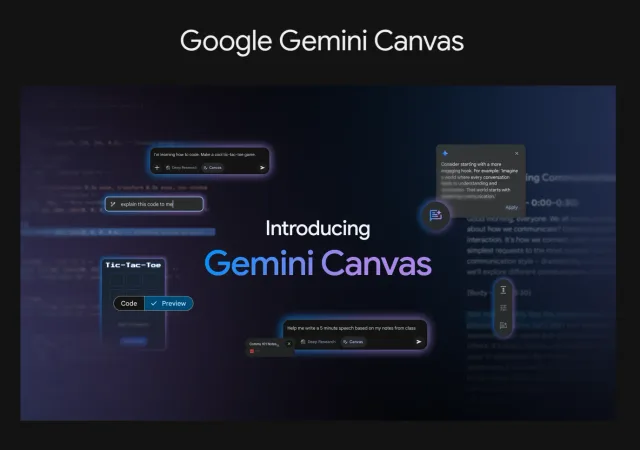

I tried Gemini Canvas for writing and generating a webpage. Here’s how its workspace, editing controls, and code preview worked.

What Is Gemini Canvas?
Gemini Canvas provides a workspace for drafting documents and generating code. You can edit the result and ask Gemini to revise it.
Writing with Canvas
One of the best things about Canvas is how it helps with writing. I started a draft by simply typing my ideas, and the tool offered suggestions to make my text clearer and more engaging. With quick editing tools, I could easily adjust the tone, length, and format of my writing.

Coding and Creating
I asked Gemini Canvas to create a webpage layout. It generated HTML and a live preview, so I could see how edits changed the page.
To build a more complete app from a prompt, my Google AI Studio Build tutorial follows an image-search project through generation and preview.

Use Cases and Examples
I found that Gemini Canvas is versatile enough to support many different creative and work-related tasks.
- Blog Writing and Essays: When I need to draft a blog post, I can quickly generate an outline and then refine each section with detailed suggestions. This is great for writers who want to overcome writer’s block or simply get a second opinion on their work.
- Coding Projects: Generate HTML, React, or JavaScript snippets and inspect the page in the live preview.
- Brainstorming and Outlining: Draft ideas and outlines for reports or proposals, then revise the structure.
- Educational Purposes: Teachers and students can use Canvas to prepare lesson plans, study guides, or quizzes. Educators can benefit from its collaborative features by exporting their work to Google Docs to share and further refine their content with colleagues or students.
How to Access Gemini Canvas
Here is a step-by-step guide to accessing and using Gemini Canvas, along with a couple of examples.
- Open the Gemini Website: Go to gemini.google.com on your computer.
- Log In: Sign in with your Google account.
- Select the Correct Model: Make sure you have the Gemini 2.0 Flash model selected (Canvas works with this model).
- Find the Canvas Option: Look below the prompt box at the bottom of the screen. Click the “Canvas” button to enter the workspace.

- Enter Your Prompt: Type what you want to create. For example, “Write a blog post about AI in education” or “Create a simple tic-tac-toe game.”
- Interact and Edit: Once your content appears, you can click on sections to make changes. Use the built-in tools to adjust tone, expand text, or debug code.

- Export or Share: When you’re happy with your work, export it to Google Docs, Export to Colab or share it with others using a shareable link.

This 7-step process will help you start with Gemini Canvas for writing and coding projects.
Pricing Information
The basic version of Gemini Canvas is free. You don’t even have to create an account to use it. Pricing details might change over time, so it’s a good idea to check Google’s official website for the latest updates.
Video Tutorial
Watch on YouTube: Google Gemini Canvas
Conclusion
Using Gemini Canvas has been a refreshing experience. It combines writing, coding, and creative editing into one simple tool. I’m looking forward to seeing more improvements and updates as Google continues to roll out new features.
Try it on a small writing or coding task and check whether the editing tools help.
Cheers! ;)