
This guide covers Google’s Gemma 3 models and how to run them locally. I’ll walk through the model sizes, setup, and examples with text and images.
About Gemma 3
What is Google Gemma 3?
Gemma 3 is a family of models you can download and run yourself. Choose a size that fits your hardware.
Understanding Gemma 3 Models
Gemma 3 comes in 1B, 4B, 12B, and 27B sizes, where “B” means billion parameters. Features and memory requirements vary by size. The family includes multilingual and image-understanding models, with context windows up to 128,000 tokens.
Google made Gemma 3 open for developers. You can download the model weights for free and run them locally or call Gemma 3 through an API. There is no need to pay per prompt if you host it yourself. It’s licensed for commercial use with some responsible AI guidelines, so you could potentially build it into a product. This open-model approach is similar to Meta’s LLaMA 2, but Google’s taken it further with multimodal and high efficiency.
You can use your favorite tools, such as Hugging Face Transformers, Ollama, PyTorch, Google AI Edge, UnSloth, vLLM, etc. In this tutorial, I’ll show you how to use it via Hugging Face. At the end of my tutorial, we’ll have a web application similar to ChatGPT that we will run locally.
If you prefer managing models from the terminal, the Ollama guide covers installation, model commands, and the local API.
Gemma 3’s Key Features
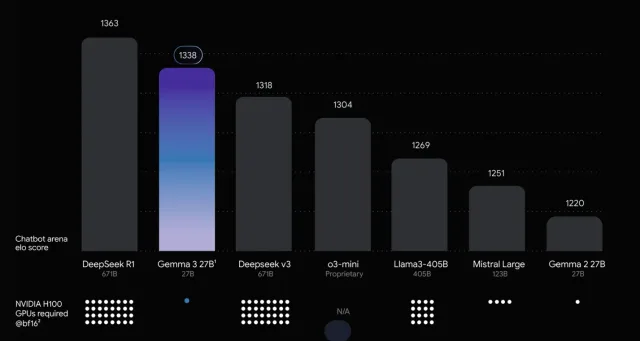
- Small but Strong. Gemma 3 is powerful; even the big 27B model can run on one GPU. It’s faster and smaller than many other AIs.
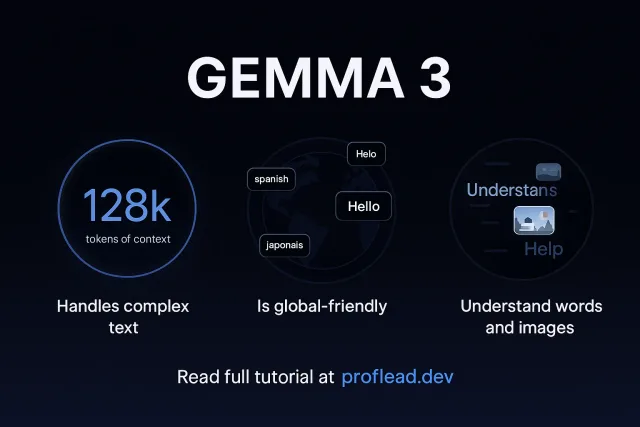
- It Reads Long Texts. It can read and understand very long documents, such as books or contracts, all at once.
- Understands Pictures and Text. You can show it an image and ask questions. It knows how to look at pictures and give competent answers.
- Speaks 140+ Languages. Supports languages including Spanish, French, and Japanese.
- Gives Clean Data. It can reply in formats like JSON, so developers can use the answers in apps easily.
- Runs on Smaller Devices. Smaller versions are available, so you can run it on laptops with less memory.
- Built-in Safety. Google added ShieldGemma 2 tools to help keep it safe and block harmful content.
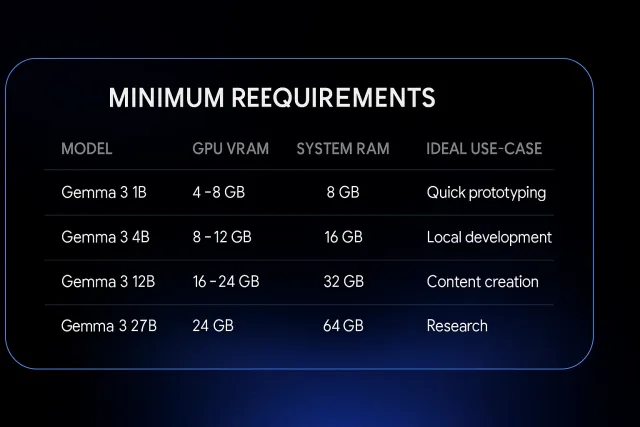
Minimum Requirements to Run Gemma 3 Locally
If you want to run Gemma 3 locally on your computer, ensure your device meets the minimum requirements.
How to Access Gemma 3
There are multiple ways how you can work with this model. In this tutorial, I’ll show you three ways:
- Google AI Studio
- Hugging Face
- Google APIs
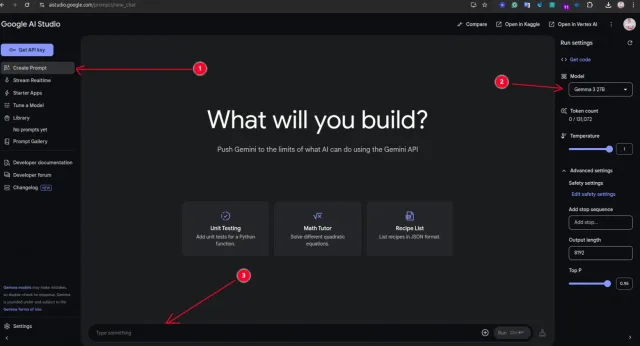
How to Use Gemma 3 in Google AI Studio
- Open this link in your browser: https://aistudio.google.com/
- You’ll need a Google account to use AI Studio.
- Click “Create Prompt”.
- In the Model Settings, select Gemma 3 (you may see options like “Gemma 27B”, “Gemma 4B”, etc.).
- Enter a prompt for writing, coding, or a question you want to ask.
- Click the “Run” button to get a response from Gemma 3.
How to Use Gemma 3 with Hugging Face Transformers (Python)
If you’re comfortable with Python, this is straightforward. Hugging Face has the Gemma 3 models on their hub. All you do is install transformers library, and then download the model. I won’t explain all the steps in detail, but you can read my full tutorial about Hugging Face,
Before we start, you would need:
- Install IDE like VScode
- Install Python language
Then follow these steps:
- Open: https://huggingface.co and create an account there.
- Click the “Models” lin in the top nav and filter the result by typing “Gemma” and after select on of the Google’s model from the list.
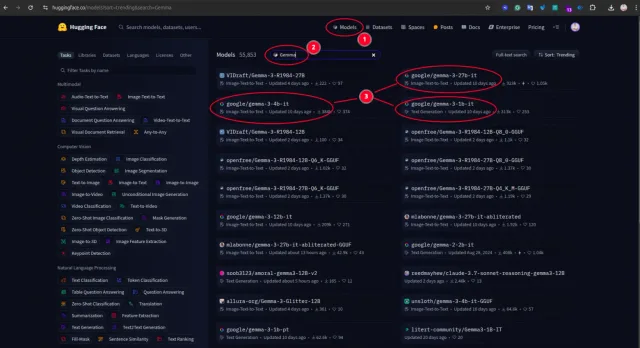
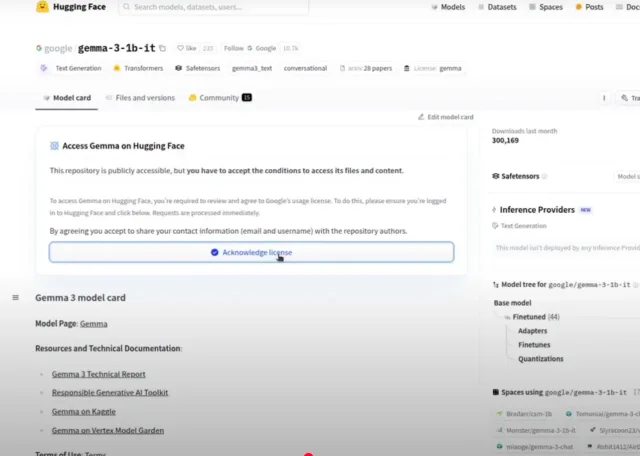
- Select the desired model, e.g., https://huggingface.co/google/gemma-3-4b-it, and accept the license agreement.
Then open your terminal and paste these commands one by one:
python3 -m venv venv
source venv/bin/activate
pip install transformers datasets evaluate accelerate
pip install torch
Then open your IDE and create a new file, e.g., main.py, with the following code:
from transformers import pipeline
import torch

pipe = pipeline(
    "image-text-to-text",
    model="google/gemma-3-4b-it",
    device="cpu",
    torch_dtype=torch.bfloat16
)

messages = [
    {
        "role": "system",
        "content": [{"type": "text", "text": "You are a helpful assistant."}]
    },
    {
        "role": "user",
        "content": [
            {"type": "image", "url": "https://huggingface.co/datasets/huggingface/documentation-images/resolve/main/p-blog/candy.JPG"},
            {"type": "text", "text": "What animal is on the candy?"}
        ]
    }
]

output = pipe(text=messages, max_new_tokens=200)
print(output[0]["generated_text"][-1]["content"])
Run the python code by using this command:
python3 main.py
In this example, we asked Gemma to identify the animal shown on the candy in an image. We used the Gemma 3 4B model on a CPU.
The complete code with other examples you can find on my Git repo: Gemma 3
How to Use Gemma 3 via Google’s API
As in the Hugging Face example, before we start, you would need:
- Install IDE like VScode
- Install Python language
Then follow these steps:
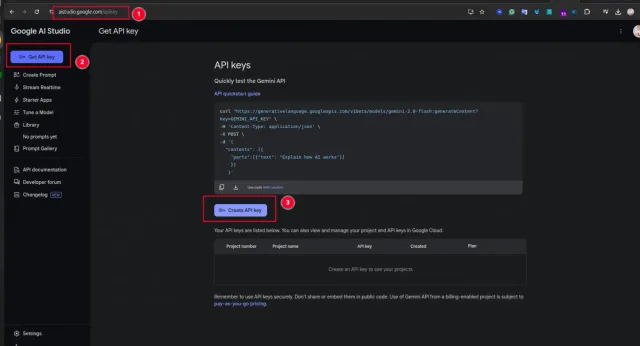
- Open https://aistudio.google.com/ and create a Google account if you don’t have one.
- Then click on the “Get API key” button. On this page, you need to generate an API key. We will need it to connect to Google Cloud API.
Then open your terminal and paste these commands one by one:
pip install google-generativeai
pip install google-genai
Then open your IDE and create a new file, e.g., google-cloud-api-terminal.py, with the following code:
import google.generativeai as genai

# Configure the API key
genai.configure(api_key="[REPLACE-THIS-TEXT-WITH-YOUR-API-KEY]")

# Initialize the GenerativeModel with the model name as a positional argument
model = genai.GenerativeModel("gemma-3-27b-it")

# Generate content
response = model.generate_content("What is the latest version of iphone?")

# Print the generated text
print(response.text)
This example used a 27-billion parameters model and a simple text prompt.
The complete code with other examples you can find on my Git repo: Gemma 3
A Simple Web Application Similar To ChatGPT that Using Gemma 3
So, let’s collect everything together and create a simple web application that we can run locally on your computer. In this example, I’ll be using Google Cloud API but you can use Hugging Face and download the model on your computer.
We are going to use the chainlit library. Chainlit is an open-source Python package to build production-ready Conversational AI.
Before we start, you would need:
- Install IDE like VScode
- Install Python language
- Google’s API key from Google AI studio (look at the previous section).
Then open your terminal and paste these commands one by one:
pip install google-generativeai
pip install google-genai
pip install chainlit
Then open your IDE and create a new file, e.g., google-cloud-web-interface.py, with the following code:
import chainlit as cl
import google.generativeai as genai

# Configure the Generative AI client
genai.configure(api_key="[REPLACE-THIS-TEXT-WITH-YOUR-API-KEY]")

# Initialize the GenerativeModel
model = genai.GenerativeModel("gemma-3-27b-it")

@cl.on_message
async def handle_message(message: cl.Message):
    # Generate content based on the user's input
    response = model.generate_content(contents=[message.content])
    reply = response.text
    # Send the generated response back to the user
    await cl.Message(content=reply).send()
Run the Python code by using this command:
chainlit run google-cloud-web-interface.py
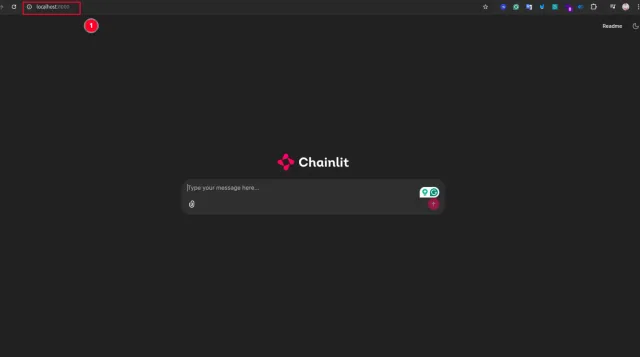
If everything is ok, you will see your web application at http://localhost:8000/
Video Tutorial
I have a video tutorial that explains everything in detail. You can find it on YouTube.
Watch on YouTube: Gemma 3 Full Guide
Conclusion
You can now run Gemma 3 locally and try it with your own text or images. Check the model size against the memory available on your machine.
If you try Gemma 3, share what you built or ask a question in the comments.
Thanks for reading, and until next time, happy coding! 👋
Cheers! ;)