Modern software development rarely happens in one place. You might start a coding session at the office, but later need to finish the job from a different computer.
There is a way. You have to push code to GitHub, pull it down on your other machine, and-worst of all-you lose your entire conversation history with your AI assistant.
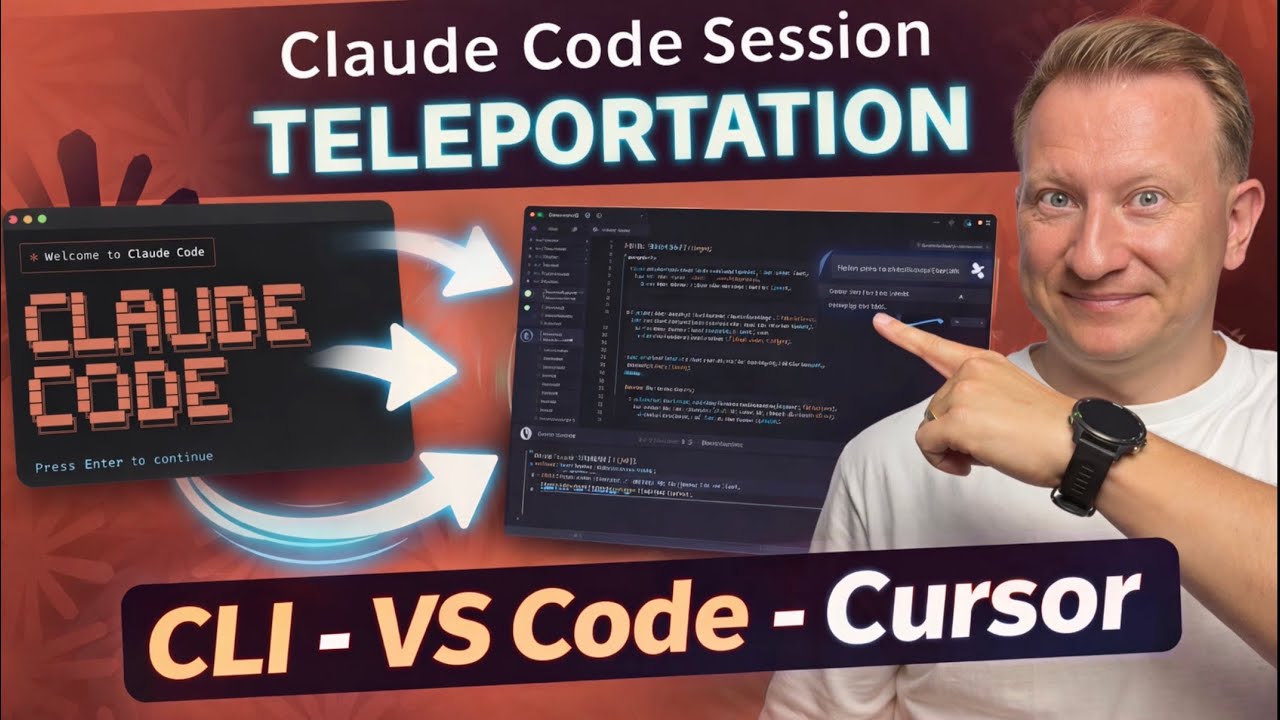
Recently, I started using Session Teleportation in Claude Code. It allows you to move an entire conversation, including context, history, and the working branch, between the web and your local terminal.
In this tutorial, I show you how it works and how to use it to make your workflow seamless.
First-Time Setup (Do This First)
Before you can teleport anything, you need to connect your local environment to Claude’s cloud.
Install and Update First, make sure you have the latest version of Claude Code.
npm install -g @anthropic-ai/claude-code
or use this comand:
claude update
Turn on Claude Code on Web
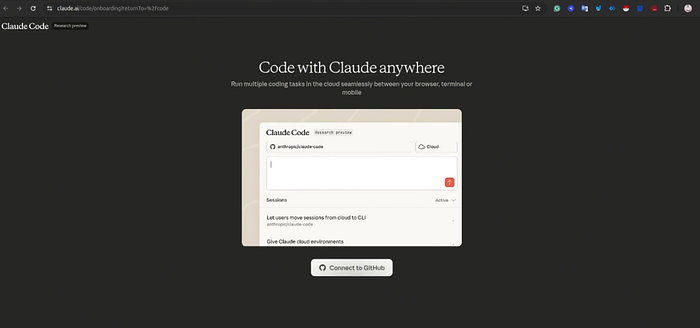
Open the website https://claude.ai/code and finish the onboarding.
You must connect your GitHub account. This is critical because Claude needs access to your repositories to “teleport” the code changes between devices.
Note: If you use an organization’s repository (like at work), you might need to click “Grant” next to your organization’s name in the GitHub permissions screen.
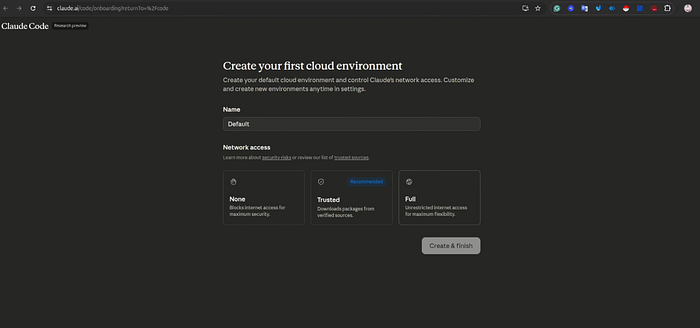
Then set up cloud environments. Give it a name and network access.
How Session Teleportation Works
Navigate to your project folder in the terminal and run claude. Claude will detect your git repository and make sure it has permission to access it.
The teleportation is built around two simple commands.
1. The **&** Prefix (Send to Web) This is how you start a "background session." If I type & before my prompt in the CLI or VS Code, Claude runs the task on its cloud infrastructure. Example:
& Refactor the authentication module to use JWT tokens
2. The **/teleport** Command (Bring to Local): This is how you resume work. You can pull that web session into your local terminal or VS Code using claude --teleport <session-id>.
Important Note: This process is one-way. You can pull a web session down to your terminal, but you cannot “push” an existing local session up to the web. If you think you might need to switch devices later, always start your task with the & prefix!
Moving Tasks from VS Code to the Web
Install the Claude Code extension in VS Code or Cursor (via the Extensions panel). Once installed, you can send tasks to the web directly from within your editor.
Compose your prompt. For example, if you want Claude to refactor authentication logic, start your prompt with &:
& Refactor the authentication module to use JWT tokens instead of sessions
This creates a background web session and returns a session ID. The task continues even if you close VS Code or shut down your laptop.
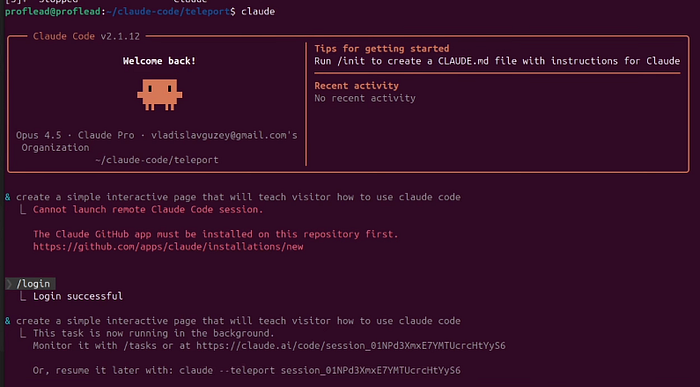
Monitor the session. Use /tasks in the CLI or click on the task in the web interface to see status.
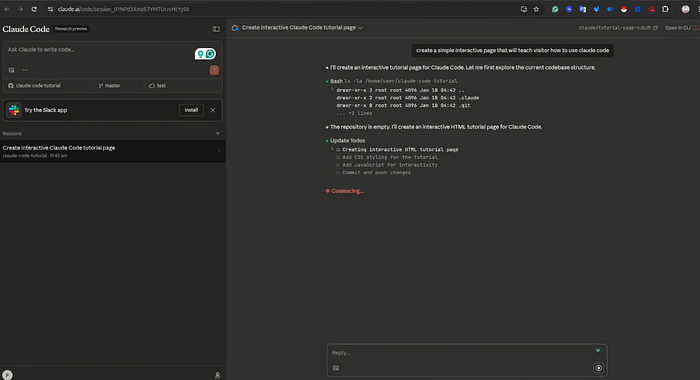
You can also run claude — status <session‑id> from any device.
Pulling Web Sessions Back to Your Terminal (VS Code or Cursor)
Locate your session. In the Claude chat, run /teleport (or /tp) to see all active web sessions. From the command line, run claude — teleport for an interactive picker or claude — teleport <session‑id> to resume a specific session.
claude --teleport session_01RyZ89nysBFFZnqFMZ4KpkZ
Meet the requirements. Before teleporting, Claude checks several conditions:
- Clean Git state: You must have no uncommitted changes. Teleport will prompt you to stash them if necessary.
- Correct repository: You must be in a checkout of the same repository used on the web.
- Branch availability: The branch created during the web session must be pushed to the remote; teleport will fetch and check it out.
- Same account: You must be authenticated as the same Claude.ai user.
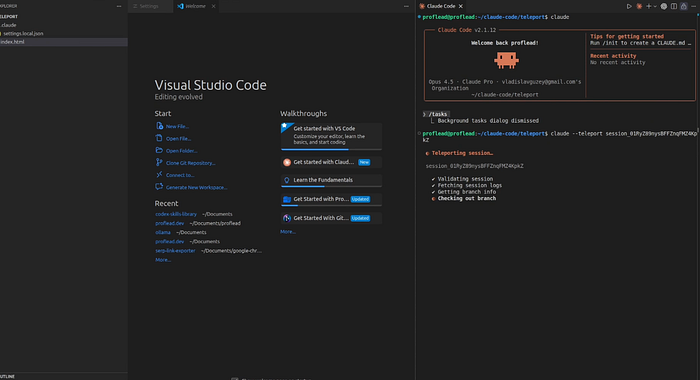
Teleport the session. Once these conditions are satisfied, Claude will fetch the branch, load the conversation history, and attach the session to your local environment. You can then continue the conversation and review code in Cursor or the terminal as if you never left.
Pro Tips for Getting the Most Out of Claude Code Teleport
- Parallel Work Streams: Sometimes I run multiple & commands at once to start several tasks simultaneously.
- Team Collaboration: This is a hidden gem. I can share a Session ID with a teammate, and they can teleport into my session on their machine. It is perfect for async pair programming.
- One-Way Only: Remember, you can pull a web session down to your terminal, but you cannot “push” an existing local session up to the web. Always start with & if you think you might need to move!
- Maintain a clean Git state. Teleportation requires a clean working directory. Use Git stashes or commit your changes before pulling sessions
Claude Code Teleportation Tutorial
I also have a video with step-by-step instructions on how to use Claude Code teleportation. Please make sure to check it out.
Watch on YouTube: Claude Code Tutorial: Teleportation
Conclusion
Session teleportation blurs the line between local and remote development. It allows you to offload compute‑heavy tasks to the cloud, then seamlessly resume work locally without losing context. This cross‑device mobility is valuable for distributed teams and individuals who switch machines throughout the day.
I hope you found this tutorial helpful. If so, please leave your comments and subscribe to my YouTube channel, where I share a lot of useful tutorials for devs ;).