
Today, I’ll show you how to use ChatGPT-5 in the Cursor IDE and use it to take a messy app and make it much better. We’ll go step-by-step, from turning on GPT-5 model to using it for real coding tasks.
Press enter or click to view image in full size
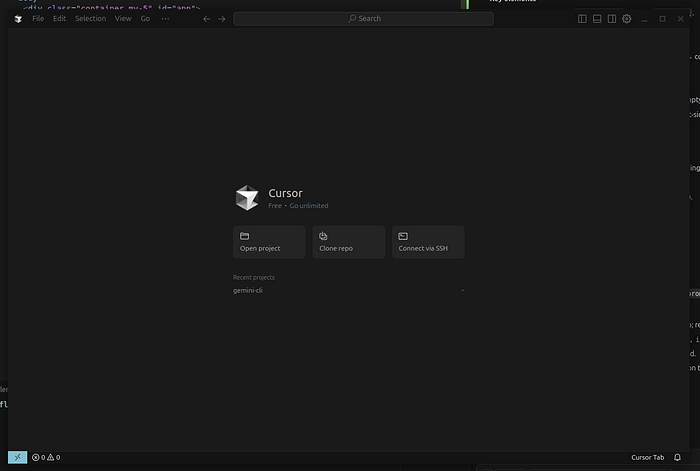
What is Cursor and why use ChatGPT-5 in it?
Cursor is a code editor (similar to VS Code) but with AI built in. It lets you:
- Chat with AI about your code
- Ask for code changes directly inside the editor
- Make multi-file edits without switching tools
Press enter or click to view image in full size
With ChatGPT-5 inside Cursor, you get:
- Better reasoning
- Smarter refactoring
- Cleaner explanations
How to Turn on ChatGPT-5 in Cursor
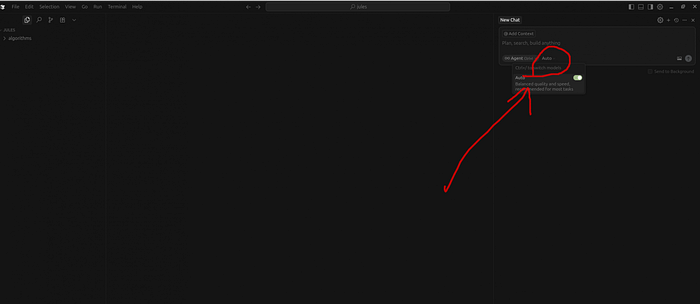
Open any project and navigate to the right column with the chat. Then click on the word “auto” and turn off the toggle.
Press enter or click to view image in full size
Press enter or click to view image in full size
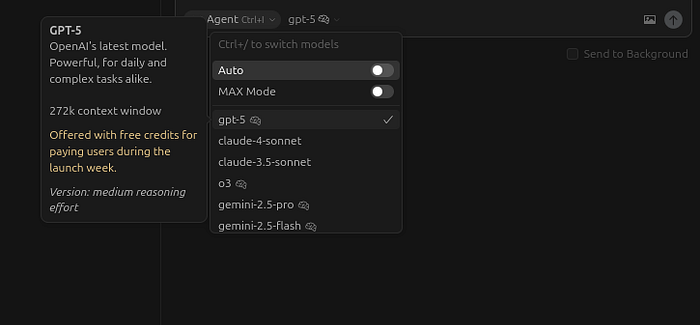
You can use two modes, “Ask” and “Agent”.
Press enter or click to view image in full size
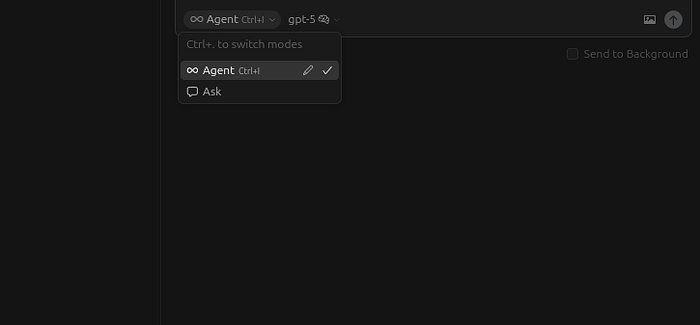
Two modes
- Ask mode acts as an AI Assistant
- Agent mode does all the hard work for you. All you need to do is look and confirm when it asks for permission to run specific commands.
Tips for Better Results
- Be specific. Short, clear prompts work best.
- Review everything. Don’t apply changes without reading them.
- Ask for explanations. Use Chat to explain diffs in plain English.
- Work in small chunks. Big changes are harder to debug.
- Keep testing. Run your app after each step.
Video with Real Use Cases
You can watch my video where I demonstrate how I convert a simple to-do app to a more complex one in about 10 minutes.
Watch on YouTube: ChatGPT-5 inside Curosr
Conclusion
In short, integrating ChatGPT-5 into the Cursor IDE transforms it into a powerful coding partner. Give it a shot and share with me your feedback!
Cheers! ;)