# DevDay Exchange Chiang Mai: OpenAI and Codex Meetup Recap

A free community meetup in Chiang Mai on October 17, 2026: sharing ideas, watching OpenAI DevDay demos, trying Codex, and building together.

Author: Vladislav Guzey
Published: 2026-10-17
Canonical: https://proflead.dev/posts/devday-exchange-community-meetup-chiang-mai-2026-recap/


On October 17, 2026, I organized the **DevDay Exchange community meetup in Chiang Mai** as an OpenAI Codex Ambassador. It was a free community meetup where like-minded people could share ideas and learn from each other. We watched OpenAI DevDay demos, worked through practical examples, and tried the tools in **Build It. Show How.**, a 45-minute building challenge.

This is a community-led event, not an official OpenAI event.

Here is what we covered, with the videos and guides for trying it yourself. The walkthrough examples come from the presentation. I describe the groups' results in the challenge section below.

<figure style="max-width: 360px; margin: 2rem auto;">
  <iframe width="360" height="640" style="aspect-ratio: 9 / 16;" src="https://www.youtube.com/embed/u_cFqm8umag" title="DevDay Exchange community meetup in Chiang Mai: short event video" loading="lazy" allow="accelerometer; autoplay; clipboard-write; encrypted-media; gyroscope; picture-in-picture; web-share" allowfullscreen></iframe>
  <figcaption><a href="https://www.youtube.com/shorts/u_cFqm8umag">Watch the meetup video on YouTube</a>.</figcaption>
</figure>

- [View the meetup slides](https://docs.google.com/presentation/d/1J-oS55W6EDqpfWelV63IEntPdW1kpw_JfMRwT_E6ACA/edit)
- [Read OpenAI's DevDay 2026 recap](https://openai.com/index/devday-2026-recap)
- [Open the developer documentation](https://developers.openai.com)
- [View the event page on Luma](https://luma.com/lj7vdeim)

## From the watch party to building

Our agenda had six parts:

1. Welcome and an introduction to the meetup.
2. Community introductions, including experience with Codex.
3. DevDay 2026 OpenAI updates and demos in a watch-party format.
4. The 45-minute Build It. Show How. challenge.
5. Project demonstrations and process sharing, with five minutes per group.
6. Closing and resources for continuing the work.

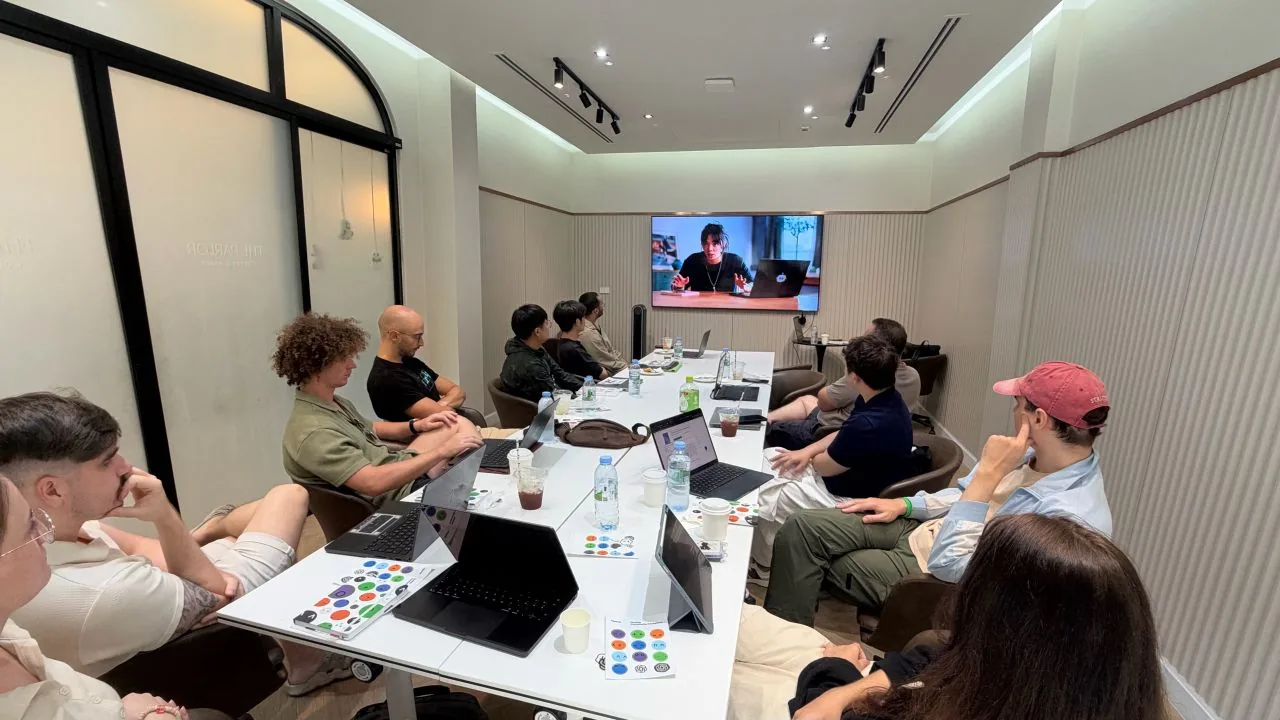
We used the demos to discuss what each tool could do, how to set it up, and how to check its work. The walkthroughs covered cloud environments, browser agents, decision-making APIs, connected Sites, and shared documents.

<figure>
  <img src="/assets/blog/devday-exchange-community-meetup-chiang-mai-2026-recap/watch-party.webp" alt="OpenAI demo playing on the meeting room screen, with laptops open around the table" width="1280" height="720" loading="lazy" />
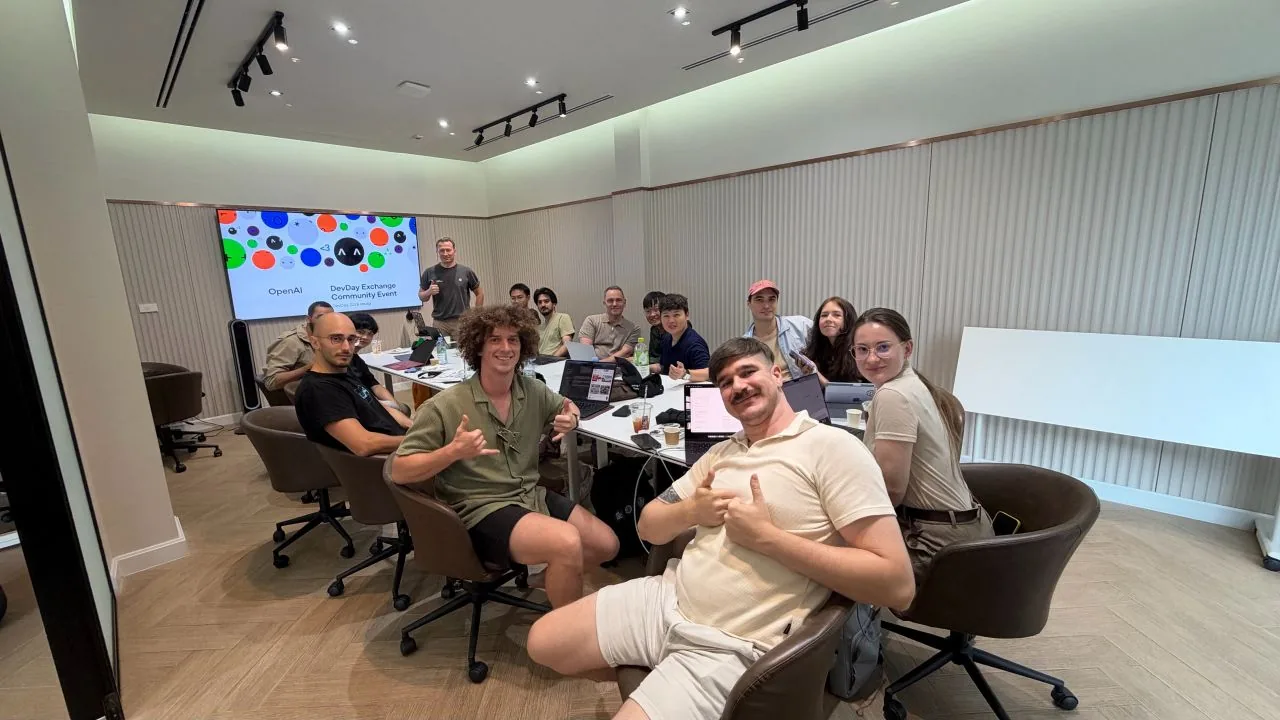
  <figcaption>Watching the OpenAI demos before trying the tools.</figcaption>
</figure>

The product details below reflect our October 17 discussion. Access can depend on your plan, region, workspace settings, or preview program. The linked guides explain current requirements; I have noted where later guidance differs from launch material.

## GPT-6.1 Sol and GPT-6 Astra Ultrafast

### Choosing a model and understanding the cost

OpenAI introduced GPT-6.1 Sol as offering near-Astra intelligence at a lower price, with stronger coding, computer use, and professional work capabilities. We covered its use in Work, Codex, and the API, and how to choose a model for a task.

At the standard API rate for prompts up to 272K input tokens, Sol's input and output token prices are one fifth of Astra's: **$2 input and $10 output per million tokens**, compared with **$10 and $50** for Astra. Other speed tiers, longer requests, tools, and subscriptions have their own costs. Compare both the quality of the result and the total cost of finishing your task.

For code, check whether the model follows the repository's conventions, makes the requested change, and passes the relevant tests. For other work, check the result against the brief and sources.

Watch the [GPT-6.1 Sol keynote section at 19:38](https://www.youtube.com/watch?v=Fls_onRviPM&t=1178s). Read the [Sol model guide](https://developers.openai.com/api/docs/models/gpt-6.1-sol) and [API pricing](https://developers.openai.com/api/docs/pricing) before estimating a project's cost.

### Faster iteration with Ultrafast

The Astra Ultrafast demo focused on shorter waits between attempts. OpenAI quoted up to **8× faster token generation in Codex** and up to **6× in the API**. Those figures measure token generation. A complete task also includes tool calls, tests, external services, and review.

Our slides noted support for Astra and Sol Ultrafast, with Codex access through the Pro $500 plan and eligible Enterprise or Edu plans. Faster modes have their own usage rules, so check the cost as well as the speed.

Watch [Build faster with Ultrafast](https://www.youtube.com/watch?v=sKltfHvsDQM). The [API Ultrafast guide](https://developers.openai.com/api/docs/guides/ultrafast-mode) and [Codex speed guide](https://learn.chatgpt.com/docs/agent-configuration/speed) explain current access and usage requirements.

## Dots and ongoing responsibilities

We watched the dots demo and discussed giving an agent an ongoing responsibility, with the context and connected tools it needs.

An ongoing task needs a clear scope, a trigger or schedule, and instructions for when to ask for review. What the agent can do depends on its permissions and connections. Our slides listed Pro and Business Premium in eligible markets, plus an administrator-enabled beta for Enterprise, Edu, and Healthcare. Access also depends on the rollout.

Watch [The dots demo, take two](https://www.youtube.com/watch?v=fHEIw5CcN5U), and check the [dots guide](https://learn.chatgpt.com/docs/dots) for current rollout details.

## Codex Cloud, the CLI, and reviewing code

### A reusable cloud development environment

The Codex Cloud walkthrough showed how to prepare repositories, dependencies, settings, and permissions once, then reuse that environment across tasks.

The workflow was:

1. Choose the repositories and prepare the environment.
2. Let Codex install dependencies and test the setup, then review access before publishing the environment.
3. Start tasks in separate workspaces created from that setup.
4. Inspect changed files and test output, request follow-ups, then commit or open a pull request when ready.

Cloud work can continue while your computer sleeps, and you can follow it from another device. Reusing the setup also helps when checking whether a failure comes from the code or the environment.

Watch [Meet the all new Codex Cloud](https://www.youtube.com/watch?v=7Bv68f5szSU). The [cloud environment guide](https://learn.chatgpt.com/docs/environments/cloud-environments) covers the setup and access controls.

### Voice, delegated agents, and resuming work in the CLI

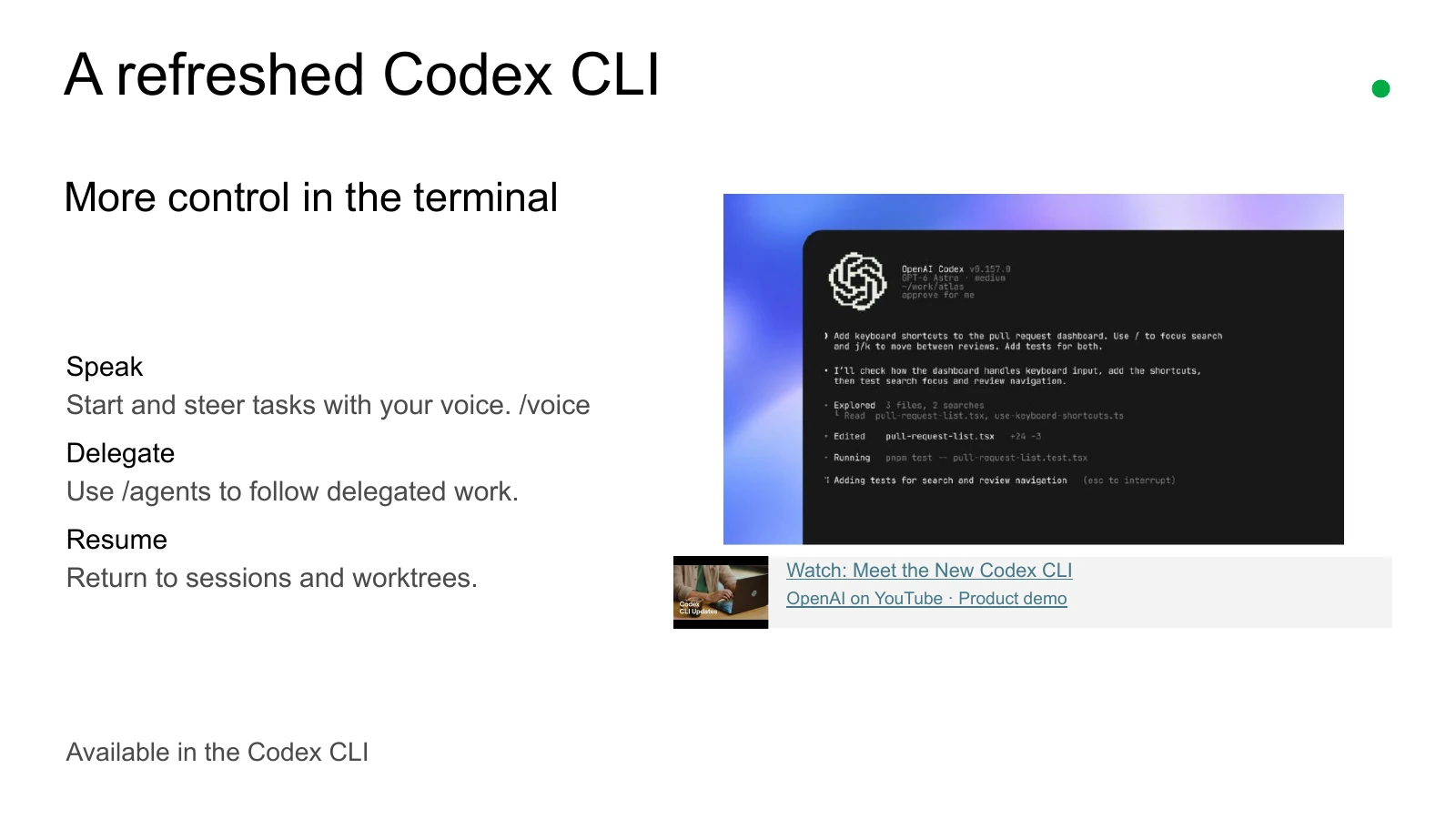
The refreshed Codex CLI added ways to manage work from the terminal: use **`/voice`** to speak instructions, **`/agents`** to follow delegated work, and resume an existing session or worktree.

<figure>
  <a href="/assets/blog/devday-exchange-community-meetup-chiang-mai-2026-recap/codex-cli-slide.webp">
    <img src="/assets/blog/devday-exchange-community-meetup-chiang-mai-2026-recap/codex-cli-slide.webp" alt="Meetup slide showing Codex CLI voice instructions, the agents command, and resuming sessions and worktrees" width="1600" height="900" loading="lazy" />
  </a>
  <figcaption>Voice, delegated agents, and resuming work in the CLI. Open the slide to read it at full size.</figcaption>
</figure>

Watch [Meet the New Codex CLI](https://www.youtube.com/watch?v=PUBc2G0Tj5E), and use the [developer commands guide](https://learn.chatgpt.com/docs/developer-commands) for command details.

### Code Review and Codex Security Cloud

Code Review helps you understand a change before merging it: read the summary, inspect the changed lines, and ask about possible issues. Automatic cloud reviews can provide a first pass while you work elsewhere. We covered GitHub support and GitLab merge requests in preview.

For Security Cloud, we walked through connecting a GitHub repository, selecting a cloud environment, reviewing the threat model, and running a scan. The threat model helps focus the scan on risks relevant to the project. Continuous Scanning can monitor the default branch, with a choice about how much commit history to include. Findings and proposed patches still need review and testing. OpenAI's DevDay guidance describes Security Cloud as a research preview.

Resources:

- [Watch: Code review is no longer the bottleneck](https://www.youtube.com/watch?v=IZXv6a78NDw)
- [Watch: Security Cloud keynote section at 28:35](https://www.youtube.com/watch?v=Fls_onRviPM&t=1715s)
- [Code Review guide](https://learn.chatgpt.com/docs/code-review)
- [Security Cloud setup guide](https://learn.chatgpt.com/docs/security/setup)

## Agents API with computer use

The Agents API lets developers build agents that use browser interfaces, delegate work, find tools, and manage context. We covered it as a public beta. The walkthrough example was an agent testing a staging website and reporting broken navigation with evidence.

The browser-agent walkthrough had three parts:

1. **Configure the session.** Add the `computer_use` tool, enable the desktop in an OpenAI-hosted environment, and save the session ID.
2. **Handle the interaction.** Follow session events, handle website-access requests and sign-in where needed, then send the task.
3. **Verify and clean up.** Review browser activity and the result. After a connection drop, recover the same session where possible. Delete it when finished.

Session state persists, so cleanup matters. Model tokens, applicable tools, and hosted containers have separate charges; delegation and retries can add usage. We also covered the API's retained session state and lack of Zero Data Retention (ZDR) support. The [data controls guide](https://developers.openai.com/api/docs/guides/your-data) explains retention and endpoint eligibility.

Watch the [Agents API and computer-use keynote section at 29:07](https://www.youtube.com/watch?v=Fls_onRviPM&t=1747s). For implementation, start with the [computer-use walkthrough](https://developers.openai.com/api/docs/guides/agents-api/tools/computer-use), then check [hosted environments](https://developers.openai.com/api/docs/guides/agents-api/environments/openai-hosted) and [usage accounting](https://developers.openai.com/api/docs/guides/agents-api/observability).

## Decisions API: answers your application can use

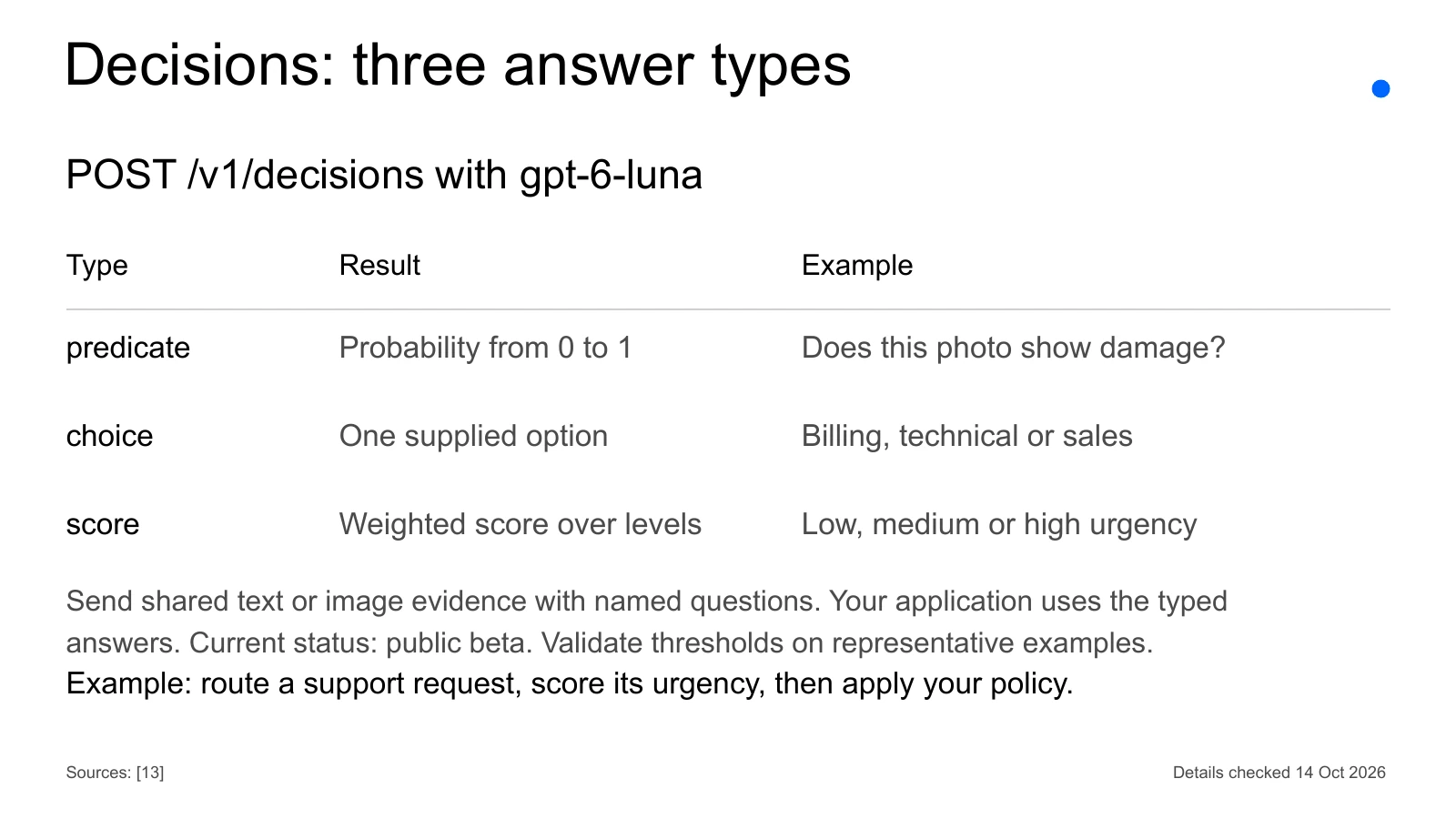
The Decisions API takes text or image evidence and named questions with a defined set of answers. Your application can use the results to classify content, route a request, or choose an agent's next step.

We covered `POST /v1/decisions` with `gpt-6-luna`, in public beta, and three answer types:

<table tabindex="0" aria-label="Decisions API answer types" style="overflow-wrap: normal;">
  <thead>
    <tr><th scope="col" style="white-space: nowrap;">Type</th><th scope="col">Result</th><th scope="col">Example from the deck</th></tr>
  </thead>
  <tbody>
    <tr><th scope="row" style="white-space: nowrap;"><code>predicate</code></th><td>A probability from 0 to 1</td><td>Does this photo show damage?</td></tr>
    <tr><th scope="row" style="white-space: nowrap;"><code>choice</code></th><td>One supplied option</td><td>Route a request to billing, technical support, or sales</td></tr>
    <tr><th scope="row" style="white-space: nowrap;"><code>score</code></th><td>A weighted score over supplied levels</td><td>Assess low, medium, or high urgency</td></tr>
  </tbody>
</table>

The walkthrough combined routing a support request with scoring its urgency. The application then applies its own policy. Test thresholds against representative examples before using them for important decisions.

<figure>
  <a href="/assets/blog/devday-exchange-community-meetup-chiang-mai-2026-recap/decisions-api-slide.webp">
    <img src="/assets/blog/devday-exchange-community-meetup-chiang-mai-2026-recap/decisions-api-slide.webp" alt="Decisions API slide comparing predicate probabilities, choice options, and weighted urgency scores" width="1600" height="900" loading="lazy" />
  </a>
  <figcaption>The Decisions API answer types and example questions.</figcaption>
</figure>

Watch [Introducing the Decisions API](https://www.youtube.com/watch?v=FB6oCmrIj-Y), and read the [Decisions guide](https://developers.openai.com/api/docs/guides/decisions) for the current API contract.

## Plugin extensions, connected Sites, and MCP events

### Plugin surfaces inside ChatGPT

Plugin extensions give a product three places to appear in ChatGPT: a sidebar entry, an interactive panel beside the conversation, and a viewer for supported file types.

Our slides noted that Free and Go web support was coming soon. Check the [extensions guide](https://developers.openai.com/plugins/build/extensions) for current availability by surface and account. Watch [Build Plugins for ChatGPT](https://www.youtube.com/watch?v=LiNhqbetrbU) for the demo.

### One Site, each person's own data

The Sites walkthrough used a shared dashboard for open issues. To build it, name a supported plugin and the data to display, test it with your connections, then publish it for the enabled workspace. Each visitor connects their own account and consents to the required access.

The same Site can show my issues to me and a teammate's issues to them. Sharing the Site does not share my account or grant access to the underlying data.

We covered a change from the launch material: it described read-only access, while later guidance included writes. Connected Sites must be private to an enabled workspace. Write actions need configuration, visitor consent, and an explicit user action. The current [Sites Help Center guide](https://help.openai.com/en/articles/20001339-creating-and-using-chatgpt-sites) describes read/write access where offered.

Watch the [connected Sites keynote section at 46:11](https://www.youtube.com/watch?v=Fls_onRviPM&t=2771s), and check the [Sites data and connections guide](https://learn.chatgpt.com/docs/sites/data-and-connections#load-visitor-data-via-plugins) for current requirements.

### Starting work from an MCP event

MCP, the Model Context Protocol, connects agents to tools and context. MCP events let a change in a connected app start a workflow. Our example was a new document comment triggering a draft revision for review.

The MCP server lists events and filters, and the user chooses what to monitor. ChatGPT subscribes with a callback; the server sends matching events through a verified webhook. The subscribed chat then follows the user's instructions. We covered MCP 2.0 and webhook delivery, with support across Work on the web, cloud Work on desktop, and dots.

Watch [From Single Player to Multiplayer with Codex](https://www.youtube.com/watch?v=aDTPTwnrRyA) for a **related Codex workflow**, rather than a dedicated MCP-events demo. The [MCP events guide](https://developers.openai.com/plugins/build/mcp-events) has the implementation details and current specification status.

## Space, Pages, and shared work

Space keeps shared knowledge, plans, source files, and outputs together. The walkthrough example was a meetup Space with an agenda, speaker notes, and follow-up actions. Our availability notes listed Pro, Business, and Enterprise for Space and Pages, with Space on web and desktop.

A link to a connected source keeps that source's access controls. Text copied onto a Page becomes visible to people who can access the Page, so check what you are sharing before copying it.

Pages are documents people can work on together. We covered creating one from a conversation, adding tables, checklists, and files through the `/` menu, selecting text to ask for a change, and leaving comments. Generate can draft new content. Pages can also include charts and images. Prompt blocks hold reusable requests; visualizations can provide a calculator or interactive explanation. You can mention people and agents and use child Pages for supporting research and decisions.

We also covered Teams and shared recurring tasks. The [Teams guide](https://learn.chatgpt.com/docs/enterprise/teams) explains scheduled or event-triggered work and the team service account and connections used to run it.

Watch the keynote sections for [Space at 8:20](https://www.youtube.com/watch?v=Fls_onRviPM&t=500s) and [Pages at 8:29](https://www.youtube.com/watch?v=Fls_onRviPM&t=509s). The [Space getting-started guide](https://learn.chatgpt.com/docs/space/getting-started) and [Pages guide](https://learn.chatgpt.com/docs/space/pages) are useful follow-ups.

### Shareable profiles

Shareable profiles let you showcase up to 12 Sites you own. The profile and each Site need compatible sharing settings; adding a Site to a profile does not grant access to it.

Personal profiles start private. People signed in to ChatGPT can view public profiles, while Business sharing follows workspace settings. Personal and Business activity have separate visibility. Shared profiles do not reveal conversation titles or content. Our slides noted that Enterprise support was coming soon.

Read the [shareable profiles guide](https://help.openai.com/en/articles/20001539-shareable-profiles-in-chatgpt). The slide's [keynote link at 46:39](https://www.youtube.com/watch?v=Fls_onRviPM&t=2799s) covers related plugin discovery, rather than a profile walkthrough.

## Sign in with ChatGPT: identity, allowance, and billing

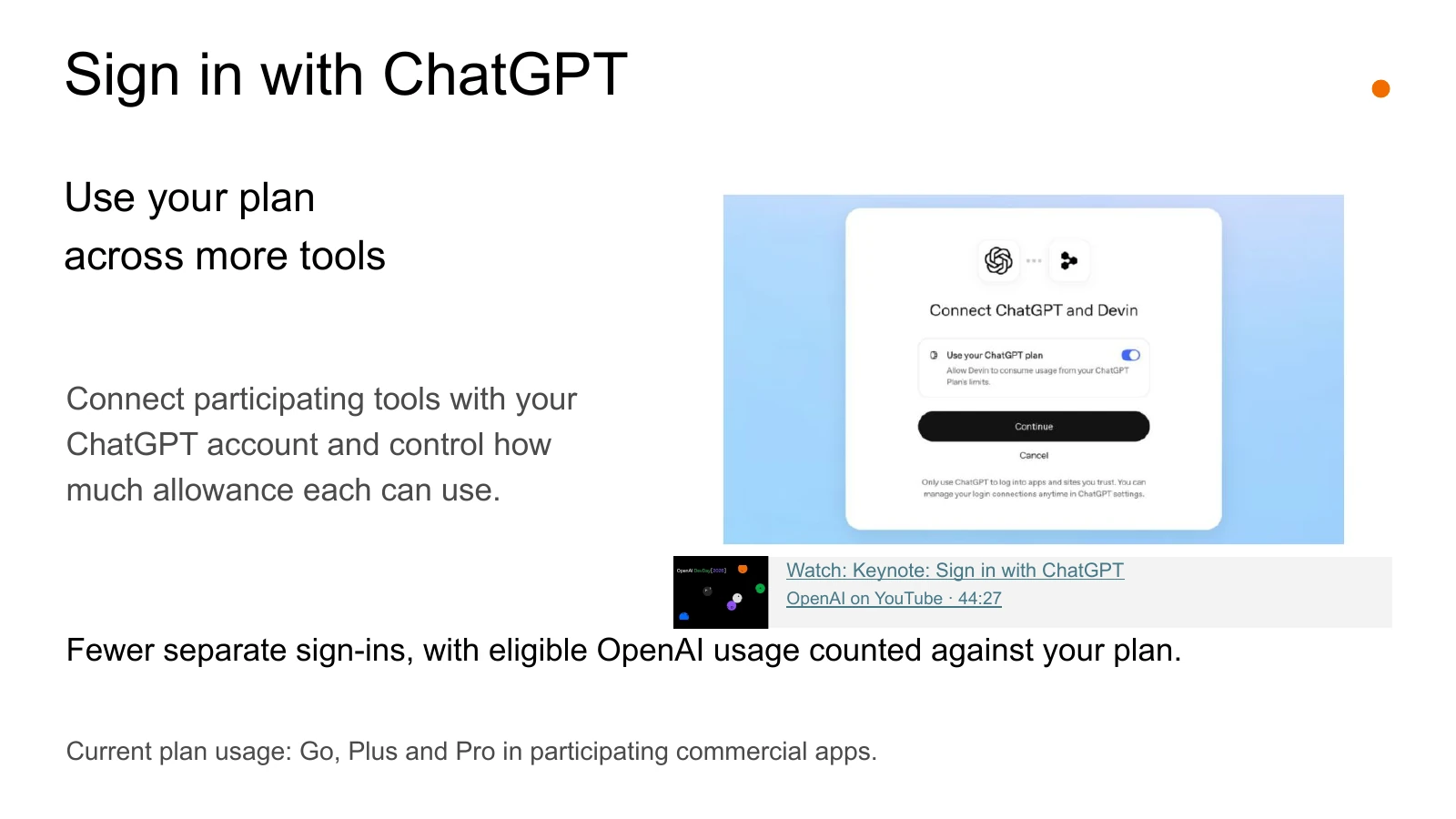
Signing in and using your ChatGPT plan in another app are separate choices. Sign-in can share your name, email, and photo. It does not expose your chats or memory, and you can sign in without enabling plan usage.

For eligible plan usage, we covered four controls:

- Requests count against the existing Work or Codex allowance.
- Set an app's weekly cap in Settings > Usage. The cap is part of your overall allowance, with no extra or reserved pool.
- A partner can still charge for its own features or infrastructure.
- Using credits beyond plan limits requires a separate opt-in.

Our slides and the linked Help Center guide included Go, Plus, and Pro in participating commercial apps. Eligibility depends on the app and current terms.

<figure>
  <a href="/assets/blog/devday-exchange-community-meetup-chiang-mai-2026-recap/chatgpt-sign-in-slide.webp">
    <img src="/assets/blog/devday-exchange-community-meetup-chiang-mai-2026-recap/chatgpt-sign-in-slide.webp" alt="Sign in with ChatGPT slide showing account connection and eligible plan usage in participating tools" width="1600" height="900" loading="lazy" />
  </a>
  <figcaption>Sign in with ChatGPT, then choose whether to allow plan usage.</figcaption>
</figure>

Watch the [Sign in with ChatGPT keynote section at 44:27](https://www.youtube.com/watch?v=Fls_onRviPM&t=2667s). Read [Using your ChatGPT plan in other apps and sites](https://help.openai.com/en/articles/20001542-using-your-chatgpt-plan-in-other-apps-and-sites) before connecting a tool.

## Build It. Show How.

After the demos, we moved into **Build It. Show How.** The mission was to **choose one update and one outcome, then build the smallest version that works**. Try the tool, test the result, and explain the process.

<figure>
  <img src="/assets/blog/devday-exchange-community-meetup-chiang-mai-2026-recap/session-table.webp" alt="DevDay Exchange title on the screen behind a table of open laptops" width="1280" height="720" loading="lazy" />
  <figcaption>From the DevDay demos to our building challenge.</figcaption>
</figure>

We used the process **Plan → Prompt → Build → Test → Improve**:

1. **Plan:** Choose a problem, one useful outcome, and what the demo should show.
2. **Prompt:** Give the tool the context, limits, and result you need. Save the key prompts.
3. **Build:** Make a first version. Record the tools, skills, subagents, or MCP connections you use.
4. **Test:** Try the main interaction. Save at least one useful check, including what worked and what failed.
5. **Improve:** Use the test results to fix or simplify the build before showing it.

We had **45 minutes to build, five minutes to prepare, and five minutes to present per group**. Teams could have up to four people. No slide deck was required; preparation time was for choosing the demo and explaining the work.

<figure>
  <img src="/assets/blog/devday-exchange-community-meetup-chiang-mai-2026-recap/build-session.webp" alt="Vladislav Guzey beside the work table during the building session, with project work open on laptops" width="1280" height="720" loading="lazy" />
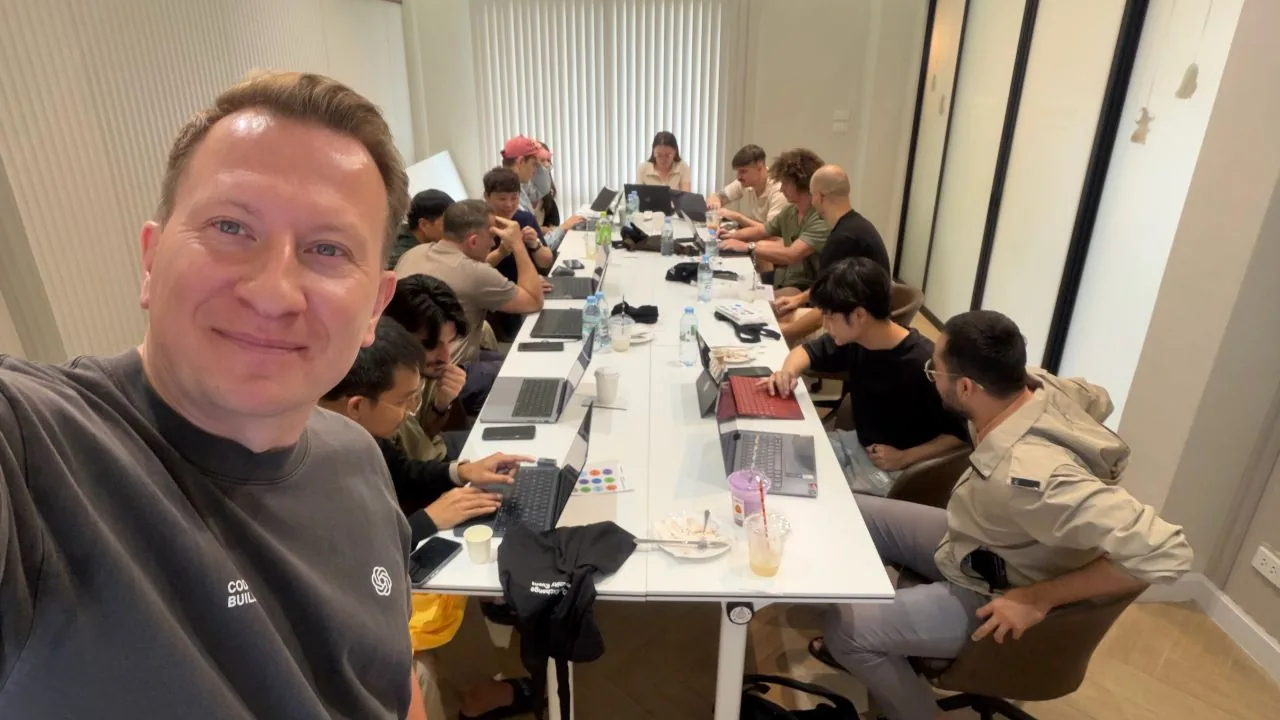
  <figcaption>Building and testing during the challenge.</figcaption>
</figure>

All six groups built something within 45 minutes, from early drafts to working MVPs, or minimum viable products. Each shared a demo and explained its plans, prompts, tools, tests, and lessons, along with any skills, subagents, or MCP connections it used.

For Show Time, each group was asked to show the result in the first 90 seconds, explain its choices, and share one idea someone else could reuse. An unfinished experiment was worth sharing with an explanation of what had been tried and learned.

## Resources for your next build

The [full slide deck](https://docs.google.com/presentation/d/1J-oS55W6EDqpfWelV63IEntPdW1kpw_JfMRwT_E6ACA/edit) has the screenshots, walkthroughs, and demo links. This article uses the same video links and keynote timestamps, with related videos labelled separately.

For more on the announcements, watch the [full OpenAI DevDay 2026 keynote](https://www.youtube.com/watch?v=Fls_onRviPM), read [OpenAI's DevDay recap](https://openai.com/index/devday-2026-recap), or check the [DevDay documentation update](https://learn.chatgpt.com/docs/whats-new/devday-2026). Use [OpenAI Developers](https://developers.openai.com) for building with the API and the [ChatGPT product guides](https://learn.chatgpt.com) for account and product workflows.

Thank you to the OpenAI team for supporting the meetup with Codex and API credits and swag. The build-session slide listed US$100 in Codex credits and US$50 in API credits for the session.

If you try the challenge, choose something small enough to test and show. Share the result with one prompt, one useful test, and one thing you would change next. Tag [@proflead](https://www.youtube.com/@proflead) and use **#DevDayCommunity** and **#proflead** if you would like to share it with me.