# Connect ChatGPT Dots to Your Computer and Run Codex
Connect your ChatGPT Dot to your computer and start a local Codex task. Follow the screenshots or watch the video walkthrough.
Author: Vladislav Guzey
Published: 2026-10-08
Canonical: https://proflead.dev/posts/connect-chatgpt-dot-to-computer/
Connect your ChatGPT Dot to your computer so it can start Codex tasks with your local files and projects. Here are the setup steps. If a step is unclear, [watch my video walkthrough](#watch-the-full-walkthrough) to follow the clicks on screen.
You need a Dot already set up and the ChatGPT desktop app on the computer you want to connect. Dots are still rolling out; check the [current access requirements](https://learn.chatgpt.com/docs/dots#access) if you cannot find yours.
## 1. Open your Dot's profile
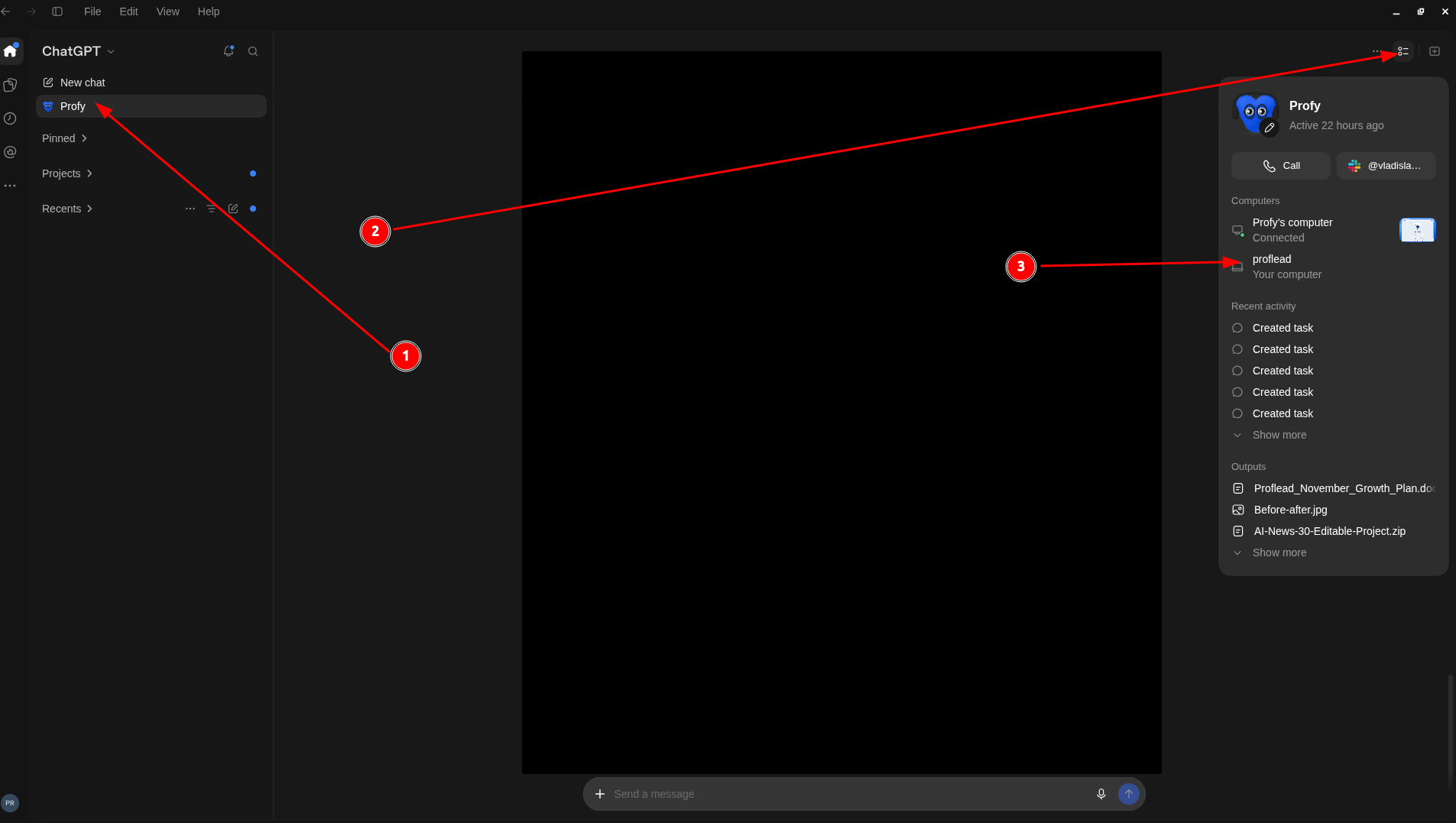
Open the ChatGPT desktop app and select your Dot in the sidebar. Then open its profile or details panel. My Dot is called **Profy**.
1: Select your Dot. 2: Open its profile. 3: Find Your computer.
## 2. Allow access to your computer
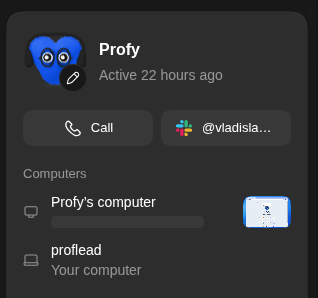
Under **Computers**, find **Your computer** and select **Allow access**. In my recording, the button says **Allow** and my computer is named **proflead**.
Find the entry labeled Your computer. Here, it is proflead.
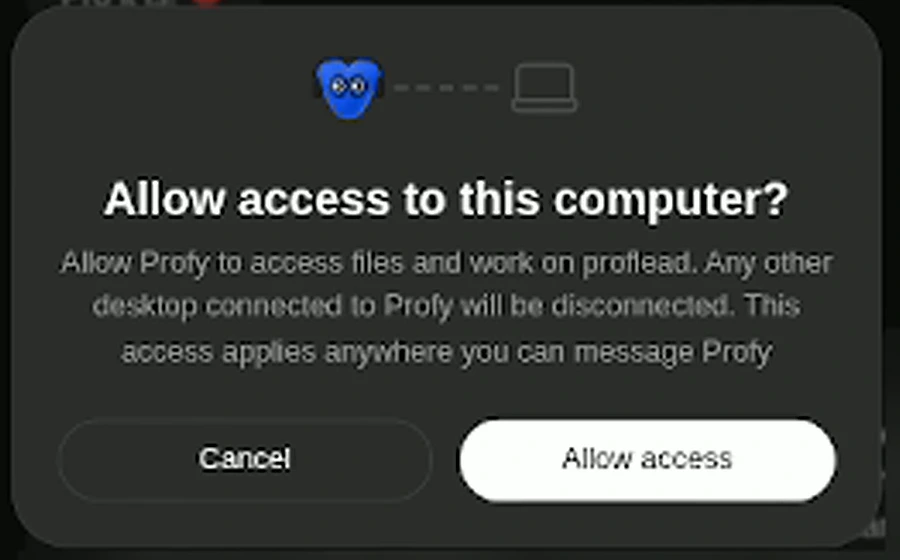
Read the confirmation, select **Allow access**, and wait for the connection to finish.
Confirm access to the computer named in the dialog.
You can connect one personal computer at a time. Keep it awake, online, and running the ChatGPT app while your Dot uses it. See OpenAI's [computer connection guide](https://learn.chatgpt.com/docs/dots/computers-and-apps#connect-your-computer).
## 3. Check the connection
Open [ChatGPT](https://chatgpt.com/) in your browser and select the same Dot. Ask:
```text
Can you use Codex on my connected local computer?
Tell me the computer's name.
```
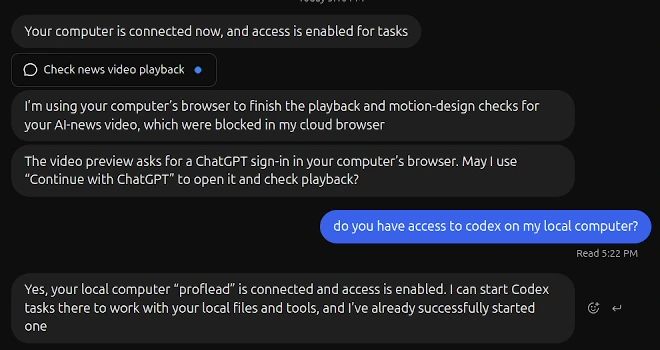
My Dot identifies proflead as the connected local computer. Select any screenshot to view it at full size.
Check that it names your own machine. The cloud computer can also show **Connected**, so check the local task too.
## 4. Try a local Codex task
Here is an example to try with your project:
```text
Use Codex on my connected computer.
Open [full path to your project].
Run the project's existing tests without changing files.
Report the computer and folder you used,
which tests passed or failed, and any errors.
If there are no tests, tell me.
```
Replace the folder placeholder with your project's full path. In the desktop app, open your Dot's profile, select **Activity**, and open the task to check its progress and results. See OpenAI's [local task guide](https://learn.chatgpt.com/docs/dots/tasks-and-memory#assigned-work).
## Watch the full walkthrough
If you still need help with the setup, watch the video. I show where to allow access in the desktop app and how to check the connection from the browser.
[Watch on YouTube: How to Connect ChatGPT Dots to Your Computer and Run Codex](https://youtu.be/L1njo7Miow0)