# Codex Cloud Tutorial: Setup, GitHub & Your First PR

Learn Codex Cloud step by step: connect GitHub, publish an environment, fix a bug, review tests, and open a PR. Includes pricing and limitations.

Author: Vladislav Guzey
Published: 2026-10-11
Canonical: https://proflead.dev/posts/codex-cloud-tutorial/


Hey devs! Codex Cloud lets OpenAI's coding agent work on your project in a remote environment. It can read code, edit files, and run commands while your computer is asleep. You can return to the task from the web, mobile, or desktop app. [OpenAI's Codex Cloud overview](https://learn.chatgpt.com/docs/cloud)

For this tutorial, I recorded a walkthrough using my [JavaScript algorithms repository](https://github.com/proflead/algorithms). I asked Codex to explain the code, fix the issues it found, and create a pull request. The result was [PR #3, “Fix binary and jump search boundary cases”](https://github.com/proflead/algorithms/pull/3).

There was also a Git push failure along the way. I'll show you what happened, how to repeat the setup with your own project, and what still needs checking before you accept the code.

By the end, you should have a published cloud environment and a small, reviewable change. You'll also know how to tell a reported test result from a check you've reproduced yourself.

## Watch the Codex Cloud video tutorial

Here's my [published walkthrough, “How to Use Codex Cloud: From GitHub to Your First Pull Request”](https://youtu.be/GPrPPNCu1Uw). I set up the environment, ask Codex to explain and fix the repository, and check GitHub before requesting the PR. After opening the PR, I check my local repository and show where to edit the cloud environment.

<div class="videoWrapper">
  <iframe width="100%" src="https://www.youtube.com/embed/GPrPPNCu1Uw" title="How to Use Codex Cloud: From GitHub to Your First Pull Request" frameborder="0" allow="accelerometer; autoplay; clipboard-write; encrypted-media; gyroscope; picture-in-picture; web-share" allowfullscreen></iframe>
</div>

## What is Codex Cloud?

Codex Cloud runs coding tasks on a remote virtual machine. You give it a project and a request, and it works with the files and tools available there.

There are four terms you'll see throughout the setup:

<table>
<thead><tr><th scope="col">Term</th><th scope="col">What it means in this walkthrough</th></tr></thead>
<tbody>
<tr><td>Repository</td><td>The GitHub project containing your code. Mine is <code>proflead/algorithms</code>.</td></tr>
<tr><td>Environment</td><td>The reusable project setup: repositories, installed tools, dependencies, and access settings.</td></tr>
<tr><td>Task</td><td>One conversation and its working files, starting from a published environment.</td></tr>
<tr><td>Pull request, or PR</td><td>Proposed code changes submitted through GitHub for review before merging into another branch.</td></tr>
</tbody>
</table>

The environment and the task have different jobs. You prepare and publish the environment so tasks can use it. Each new task gets its own workspace. A follow-up in an existing task continues with that task's files and context. [Cloud environments](https://learn.chatgpt.com/docs/environments/cloud-environments)

### Codex Cloud vs local Codex

Choose based on where the work needs to run:

<table>
<thead><tr><th scope="col">Your situation</th><th scope="col">Where I&#x27;d start</th></tr></thead>
<tbody>
<tr><td>A GitHub project with setup that can run remotely</td><td>Codex Cloud</td></tr>
<tr><td>A project that depends on files, running apps, or browser sign-ins on your computer</td><td>Local Codex</td></tr>
<tr><td>A task you want to leave running while your laptop sleeps</td><td>Codex Cloud</td></tr>
<tr><td>Frequent edits and checks in your existing editor</td><td>Local Codex or its IDE integration</td></tr>
</tbody>
</table>

Both workflows can produce code changes and pull requests. The practical difference is access to the working environment. Your laptop's files, processes, browser sessions, and VPN connection aren't automatically transferred to a cloud task. [Environment access](https://learn.chatgpt.com/docs/environments/cloud-environments), [my Codex in VS Code guide](/posts/codex-cli-in-vscode/)

## What you need before starting

Have these ready:

- A ChatGPT account with access to Codex Cloud in the workspace you're using.
- A GitHub repository you can connect. Start with a small project you understand, or a copy you can experiment with.
- A way to check the result: existing tests, runnable examples, or a specific behavior you can verify.

Codex Cloud uses **ChatGPT sign-in**. You don't need an OpenAI API key for this workflow. If your account supports email-and-password login, OpenAI requires MFA before cloud access; social-login and SSO requirements differ. [Authentication requirements](https://learn.chatgpt.com/docs/auth#secure-your-codex-cloud-account)

The current pricing guide lists cloud chats for Plus, Pro, Business, and Enterprise/Edu. Access also depends on workspace permissions. Free or Go access to other Codex features doesn't establish access to this cloud workflow. Check the [current plan comparison](https://learn.chatgpt.com/docs/pricing#feature-availability) before subscribing for it.

You can follow the cloud setup in a browser. Installing Node.js on your own computer becomes relevant if you want to rerun this JavaScript example locally.

For reference, here is the [repository snapshot before my task](https://github.com/proflead/algorithms/tree/e923228b555646c9ffb51c9dffcb95d03ee8b75d). The live repository may change, so don't assume the same bugs will still be present when you try it.

## How to set up Codex Cloud and run your first task

### 1. Choose Cloud and create an environment

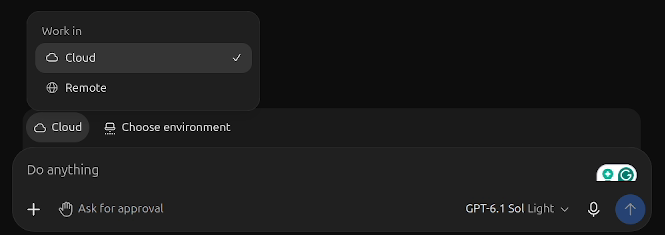
Open [ChatGPT](https://chatgpt.com/) on the web or in the desktop app and sign in. In the video, I open the sidebar's three-dot menu and choose **Codex**. Near the prompt field:

1. Open **Work in**.
2. Choose **Cloud**.
3. Open **Select environment**.
4. Choose **Create environment**.

If you already have a suitable published environment, select it and skip to the first-task step below. You can also create an environment through **Settings → Codex Cloud → Environments**. [Official setup steps](https://learn.chatgpt.com/docs/environments/cloud-environments#create-and-publish-an-environment)

<figure>
<a href="/assets/blog/codex-cloud-tutorial/01-choose-cloud.png" target="_blank" rel="noopener noreferrer" aria-label="Open screenshot at original size">
<img src="/assets/blog/codex-cloud-tutorial/01-choose-cloud.png" alt="Work in menu in my Codex Cloud recording, with Cloud selected and Choose environment visible" width="665" height="235" loading="lazy" />
</a>
<figcaption>Cloud selected in the Work in menu, with Choose environment available.</figcaption>
</figure>

### 2. Connect GitHub and select your repository

Connect GitHub if prompted, then select the repository Codex should prepare. My GitHub connection was already set up, so I only needed to choose `proflead/algorithms`.

When GitHub offers repository access choices, I usually select only the project I want to work on. Check the repository name and the access you're granting before continuing.

Select **Get started**. Codex inspects the selected project and prepares its tools and dependencies. If it needs information or access, supply that during setup. [Create and publish an environment](https://learn.chatgpt.com/docs/environments/cloud-environments#create-and-publish-an-environment)

### 3. Read the setup report

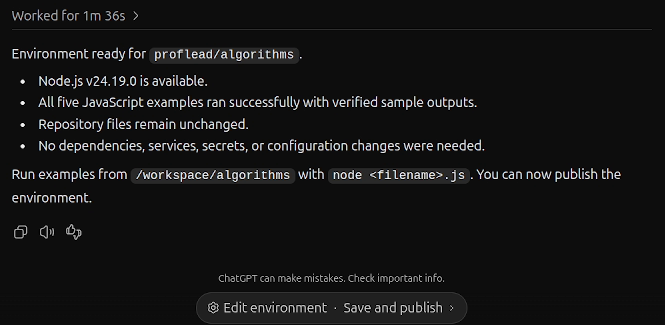
This repository contains small JavaScript examples that run independently. Codex's setup report said Node.js was available, all five examples ran successfully, and no extra dependencies, services, or secrets were needed. It also reported that the repository files were unchanged.

<figure>
<a href="/assets/blog/codex-cloud-tutorial/02-setup-report.png" target="_blank" rel="noopener noreferrer" aria-label="Open screenshot at original size">
<img src="/assets/blog/codex-cloud-tutorial/02-setup-report.png" alt="Codex Cloud setup report for proflead/algorithms with five successful JavaScript examples and the Save and publish button" width="665" height="325" loading="lazy" />
</a>
<figcaption>The setup report lists five successful JavaScript examples and shows the Save and publish button.</figcaption>
</figure>

A larger application may need a package installation, a database, or configuration values. In the video, I point out **Edit environment** for projects that need environment variables. Mine didn't need any extra setup. Follow the versions and commands declared by your project rather than copying a runtime version from this tutorial.

Before publishing, check:

- Did setup run the commands your project actually needs?
- Did any command fail, get skipped, or stop for missing access?
- Are the available tools and runtime versions appropriate for the project?
- Did setup leave anything unfinished?

If the report is unclear, try this suggested follow-up:

```text
Explain what you checked during setup.
List the commands you ran, any failures, and anything still missing.
Tell me whether the environment is ready for a coding task.
```

Running the sample scripts established something useful about this setup. It didn't establish that every algorithm was correct, as the next task showed.

### 4. Save, publish, and wait for confirmation

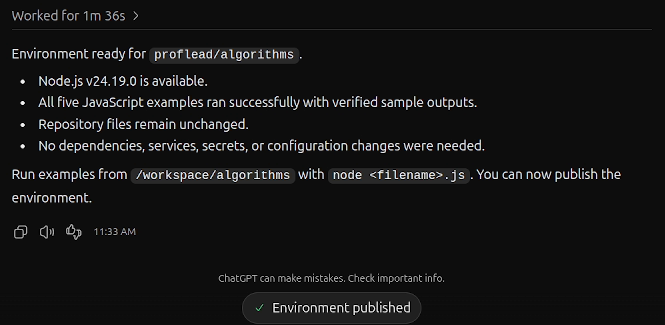
In the walkthrough, I click **Save and publish** and wait for **Environment published**. Then I return to Codex, choose **Cloud**, and select the published environment for my first task.

<figure>
<a href="/assets/blog/codex-cloud-tutorial/03-environment-published.png" target="_blank" rel="noopener noreferrer" aria-label="Open screenshot at original size">
<img src="/assets/blog/codex-cloud-tutorial/03-environment-published.png" alt="Codex Cloud setup report with the Environment published confirmation" width="665" height="325" loading="lazy" />
</a>
<figcaption>The Environment published confirmation below the setup report.</figcaption>
</figure>

Saving stores configuration. Publishing makes the prepared environment available as the starting point for new tasks. If you later change the reusable setup, edit it, test the change, and **Republish**. Existing tasks keep their own state; start a new task to use the updated setup. [Publishing and saved state](https://learn.chatgpt.com/docs/environments/cloud-environments#reuse-and-update-saved-state)

The video shortens the setup and publishing waits. Its edited timing isn't a promise about how long your environment will take.

### 5. Ask Codex to explain the project

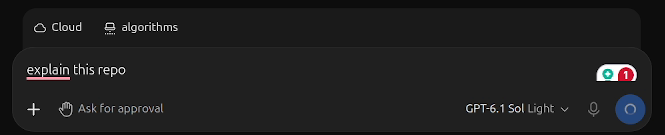
My first message was:

```text
explain this repo
```

<figure>
<a href="/assets/blog/codex-cloud-tutorial/04-first-prompt.png" target="_blank" rel="noopener noreferrer" aria-label="Open screenshot at original size">
<img src="/assets/blog/codex-cloud-tutorial/04-first-prompt.png" alt="My complete explain this repo prompt in the composer, with Cloud and the algorithms environment selected" width="665" height="135" loading="lazy" />
</a>
<figcaption>The first prompt, “explain this repo,” with the algorithms cloud environment selected.</figcaption>
</figure>

Codex described the array, sorting, and search examples. It also pointed out problems in the binary-search and jump-search code.

For a first run on your own project, I'd make the request more explicit:

```text
Explain this repository to a developer joining the project.
Identify the main files, how to run the project, and how to check it.
Point out one small issue worth investigating and name the relevant files.
Do not edit files yet.
```

That longer version is a suggested prompt, not the message shown in my recording. It gives you a chance to check whether Codex understands the project before asking it to change anything.

### 6. Request one focused fix

In the same task, I followed up with:

```text
fix the issues
```

That message had context: Codex had just listed the search issues. If you start a fresh task, describe the problem again instead of assuming it knows which issues you mean.

For this example, a more precise request would be:

```text
Fix the binary-search and jump-search boundary issues you identified.
Keep the standalone JavaScript examples working.
Add regression checks for empty arrays, single-item arrays,
missing targets, and targets in the final search block.
Run the relevant checks and report the commands and results.
Avoid unrelated refactoring or new dependencies.
```

A boundary case is a situation at the edge of the normal input. For an array with three items, the valid indexes are `0`, `1`, and `2`. A search must also handle an empty array or a target that doesn't exist.

The [actual PR diff](https://github.com/proflead/algorithms/pull/3/files) includes a small binary-search correction: an inclusive upper boundary changed from `intArray.length` to `intArray.length - 1`. It also changes the recursive stopping condition and rewrites jump-search block handling. These are specific changes you can inspect against the reported problem.

### 7. Read the changes and reported checks

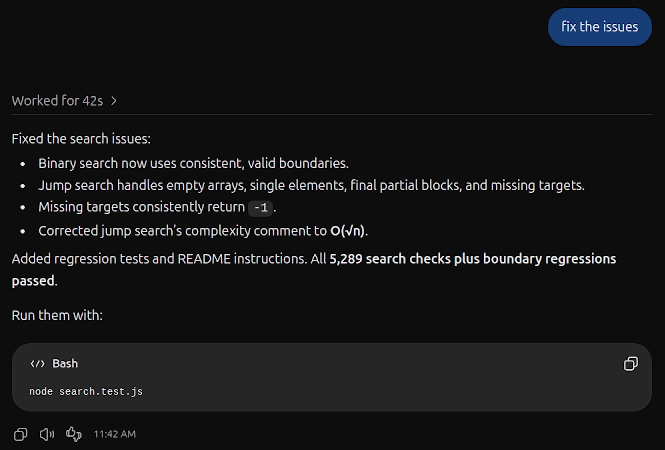
Codex returned a summary of the fixes and said it had added regression tests and README instructions. The task summary shown in the screenshot reports **5,289 search checks plus boundary regressions passed**, using:

```bash
node search.test.js
```

<figure>
<a href="/assets/blog/codex-cloud-tutorial/05-reported-test-results.png" target="_blank" rel="noopener noreferrer" aria-label="Open screenshot at original size">
<img src="/assets/blog/codex-cloud-tutorial/05-reported-test-results.png" alt="Codex&#x27;s search-fix summary showing its reported checks and the node search.test.js command" width="665" height="450" loading="lazy" />
</a>
<figcaption>Codex&#x27;s fix summary and reported test results, with the node search.test.js command.</figcaption>
</figure>

Keep that distinction when evaluating your own task. A summary tells you what the agent says it did. The test file and command output help you examine what was checked. Reproducing the checks gives you another piece of evidence.

The change touched four files: `binary_search.js`, `jump_search.js`, `search.test.js`, and `README.md`. You can inspect all four in the [public pull request](https://github.com/proflead/algorithms/pull/3/files).

### 8. Create a pull request

Before asking for the PR, I open the GitHub repository in the video. The fixes are still in the cloud workspace: no new branch or PR from this task is visible yet. The branches already listed belong to my earlier tests.

My next message was:

```text
create a pr
```

This run hit a problem. Codex reported that the workspace's Git push failed because its proxy was unavailable. It then reported using the connected GitHub tools to publish the branch and open the PR. I didn't have to intervene in this run.

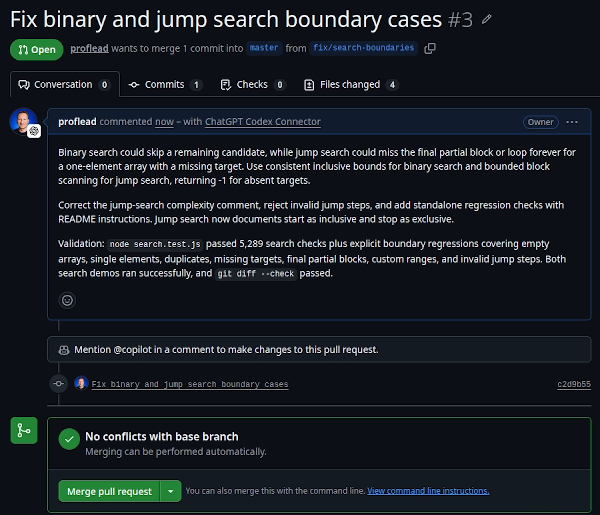
The result was [pull request #3](https://github.com/proflead/algorithms/pull/3). I open the returned link and check the repository's pull request list to confirm it's there. It's an **open PR**, with four changed files. I didn't merge it during the demo.

<figure>
<a href="/assets/blog/codex-cloud-tutorial/06-open-pull-request.png" target="_blank" rel="noopener noreferrer" aria-label="Open screenshot at original size">
<img src="/assets/blog/codex-cloud-tutorial/06-open-pull-request.png" alt="GitHub pull request Fix binary and jump search boundary cases, showing Open status and four changed files" width="600" height="515" loading="lazy" />
</a>
<figcaption>GitHub PR #3 shows an open pull request, four changed files, and Checks 0.</figcaption>
</figure>

For your own task, you could ask:

```text
Create a pull request for these changes.
Describe the problem, the fix, and the validation commands and results.
Include any checks you could not run. Do not merge it.
```

The fallback worked in this run. It doesn't establish that every GitHub access or network problem can be solved the same way.

## How to get Codex Cloud changes onto your computer

After opening the PR, I check my local repository in the [video](https://youtu.be/GPrPPNCu1Uw). I show its Git status, branches, and log. I also check the remote URL and open it in the browser to confirm it points to the same GitHub repository. The new search-fix branch hasn't appeared in that local checkout. Creating a branch in the cloud or opening a GitHub PR doesn't automatically update the files on your computer.

To review the proposed changes locally, fetch and check out the PR branch. The commands in the next section do that in a fresh folder. After a PR is merged, switch to its target branch and pull the merged changes instead. Check your current branch and any uncommitted work before changing an existing checkout.

That terminal check shows the local repository's state. It isn't a local rerun of `node search.test.js`; the video doesn't show one.

## How to review the result before merging

Creating a PR gives you a concrete change to assess. I leave PR #3 open in the demo, then check the local checkout and show the environment settings. The review below is what I'd recommend doing before merging.

### Read the diff and the tests

A diff shows added and removed lines. Check whether the changed files match the request, whether existing behavior is preserved, and whether the tests exercise the problem that prompted the fix.

In this case, useful questions include:

- Does binary search still consider the last remaining candidate?
- Does jump search inspect a final block that's shorter than the normal jump size?
- What happens with an empty array, one item, or an absent target?
- Would the added regression checks detect the original failure?

The test count alone doesn't answer those questions. Many checks can cover similar inputs, so read the cases as well as the total.

### Reproduce the checks when possible

For this particular PR, here's an optional local review sequence. It creates a fresh folder and checks out the PR branch; it doesn't merge it into `master`.

```bash
git clone https://github.com/proflead/algorithms.git algorithms-codex-review
cd algorithms-codex-review
git fetch origin pull/3/head:codex-cloud-review
git switch codex-cloud-review
node search.test.js
```

You need Git and Node.js installed locally. These are instructions for you to run, not a claim that I ran this sequence in the video. The fetched PR head can change if the PR is updated; compare it with the diff you're reviewing.

For your own project, use its documented checks. If Codex couldn't run a check, find out why. A missing dependency, a failing assertion, and an unavailable external service leave different questions to resolve.

For a visual change, also check the page or app in a suitable local or preview environment. Current Codex Cloud environments don't support browser or computer use, so don't assume a successful command means someone inspected the interface. [Current limitations](https://learn.chatgpt.com/docs/environments/cloud-environments#current-limitations)

### Request a correction in the same task

If you find a problem, return to the original task with a specific observation:

```text
The single-item missing-target case still fails with this input: [input].
Expected: -1. Actual: [result].
Fix this case, add a regression check, and rerun the search checks.
```

Replace the brackets with a result you've actually observed. Continuing the same task preserves its working state and conversation context. [Task state](https://learn.chatgpt.com/docs/environments/cloud-environments#reuse-and-update-saved-state)

If a task exposes another issue, you can investigate it before requesting a merge. GitHub's no-conflicts message tells you about mergeability; it doesn't prove the behavior is correct.

## Codex Cloud advantages and limitations

### Where cloud execution helps

**The task can continue while your laptop sleeps.** You can leave the remote work running and return to it later. [Codex Cloud](https://learn.chatgpt.com/docs/cloud)

**You can reuse the prepared setup.** Once an environment is published, new tasks can start from it. You can also continue the same task across supported devices. Each task has separate working files. [Cloud environments](https://learn.chatgpt.com/docs/environments/cloud-environments)

**The result can include code, checks, and a PR.** In my example, that meant changes to two search scripts, a test file, README instructions, and an open GitHub PR. That gives you material to review beyond a suggested code snippet.

### Limits to understand before relying on it

- **Local access doesn't transfer automatically.** Files on your laptop, browser logins, running processes, and local VPN access aren't automatically available in the cloud environment.
- **Git hosting support has boundaries.** The current environment guide lists GitLab and self-hosted GitHub Enterprise Server as unsupported.
- **Browser and computer use are unsupported in current cloud environments.** Plan a separate visual check when the change needs one.
- **Local personal skills aren't synced.** Repository-stored skills are available, but don't assume a skill installed on your computer will appear in Cloud.
- **Resources and saved state are finite.** The documented defaults for Plus are 2 vCPUs, 8 GiB memory, and 8 GiB disk; Pro defaults are 4 vCPUs, 16 GiB memory, and 32 GiB disk. Saved VM state is normally recoverable for up to seven days after your last turn or resume. Commit or save important work rather than relying on that state as a backup.

These product limits are current as of the date above. Check the [environment guide](https://learn.chatgpt.com/docs/environments/cloud-environments#vm-specifications) for your plan and the latest supported capabilities.

Usage is another limit. Local messages and cloud chats share your plan allowance, consumption varies by task, and weekly limits may apply. There isn't a reliable conversion from a subscription into a fixed number of bug fixes. Check your [usage dashboard](https://chatgpt.com/codex/settings/usage) and the [current usage guide](https://learn.chatgpt.com/docs/pricing#what-are-the-usage-limits-for-my-plan).

## Common Codex Cloud problems and how to approach them

<table>
<thead><tr><th scope="col">Problem</th><th scope="col">What to check next</th></tr></thead>
<tbody>
<tr><td>Cloud isn&#x27;t available</td><td>Confirm the account, workspace, plan access, and authentication requirements. In a managed workspace, check with an admin.</td></tr>
<tr><td>The repository isn&#x27;t available</td><td>Confirm the GitHub account and repository access granted to the connection. Supply missing access when prompted.</td></tr>
<tr><td>Setup fails</td><td>Diagnose the first failing command. Retry after fixing tool or access issues. If source files, a manifest, or a lockfile need changes, make them in a coding task, then return to setup.</td></tr>
<tr><td>A package or API request fails</td><td>Check the exact destination hostname, then check authentication separately. An allowed domain doesn&#x27;t supply credentials.</td></tr>
<tr><td>Your environment isn&#x27;t selectable</td><td>Check whether it&#x27;s still unpublished. Finish setup and publish it.</td></tr>
<tr><td>New setup changes don&#x27;t appear</td><td>Republish, then start a new task. Existing tasks retain their own state.</td></tr>
<tr><td>Git push or PR creation fails</td><td>Read the actual error and check the relevant access and network configuration. My proxy fallback was one observed outcome.</td></tr>
</tbody>
</table>

The [environment troubleshooting guide](https://learn.chatgpt.com/docs/environments/cloud-environments#troubleshoot-setup-and-runtime-access) covers setup, missing values, network failures, and publishing problems.

### Where to edit an existing cloud environment

In the [video](https://youtu.be/GPrPPNCu1Uw), I open **Settings → Codex Cloud**, select the environment, open its three-dot menu, and choose **Edit**. That's where you can revisit its configuration, including environment variables.

After changing the reusable setup, test it and republish it for new tasks. Existing tasks keep their own state. That reuse behavior is documented in the [environment guide](https://learn.chatgpt.com/docs/environments/cloud-environments#reuse-and-update-saved-state).

### Configure internet access and credentials separately

Current environments let you configure internet access and allowed domains. Add the package registries or service hosts your project needs, test access during setup, and republish for new tasks. Avoid applying old “internet only works during setup” instructions to this current workflow. [Internet access settings](https://learn.chatgpt.com/docs/environments/cloud-environments#connect-to-services)

For configuration values, distinguish:

- **Environment variables:** values programs need to read directly.
- **Network secrets:** credentials for specific allowed HTTPS services on port 443. During setup and tasks, programs receive a placeholder, and a proxy supplies the credential for the matching destination. The raw credential isn't placed in the program's process or files.

For a private package registry, both the allowed host and the authentication must be right. If you're using a network secret, its destination rules and HTTPS requirements also matter. Configure credentials through the supported settings rather than committing them to the repository. [Variables and network secrets](https://learn.chatgpt.com/docs/environments/cloud-environments#configure-environment-variables-and-network-secrets)

### Put recurring project instructions in AGENTS.md

If you keep repeating the same setup and review instructions, add an `AGENTS.md` file to the repository. For a project like this demo, an example could say:

```markdown
# Project instructions

- This repository contains standalone JavaScript examples. Follow README.md.
- Keep the examples runnable with Node.js.
- For behavior fixes, add focused regression checks and document how to run them.
- Run the affected examples and relevant checks. Report failures or skipped checks.
- Avoid unrelated refactoring and dependencies unless the task requires them.
```

This is a suggested instruction file, not a file shown being added in my recording. My [AGENTS.md tutorial](/posts/agents-md-tutorial/) explains how to write useful repository guidance.

## Codex Cloud FAQ

### Is Codex Cloud free?

Don't assume free access to another Codex surface includes Cloud. The current feature matrix lists cloud chats for Plus, Pro, Business, and Enterprise/Edu. Check the [plan comparison](https://learn.chatgpt.com/docs/pricing#feature-availability) and your workspace access.

### How much does Codex Cloud cost?

It uses eligible ChatGPT plan allowances. The current guide lists Plus at US$20 per month, but included usage is limited and additional credits may be available. Prices and workspace billing differ, so check [live pricing](https://learn.chatgpt.com/docs/pricing) for your account rather than treating this as a per-task quote.

### Do I need to know how to code?

You can describe a task in plain English. You still need a way to judge the result. If you're learning, start with explanations and a small change you can understand; get help reviewing changes you can't assess, especially before using them in a real application.

### Can I close my laptop while Codex Cloud works?

Yes, cloud tasks can continue while your computer is asleep. That's different from work executing on your connected personal computer. [Cloud execution](https://learn.chatgpt.com/docs/cloud)

### Can it use a private GitHub repository?

The repository must be available to the account and connection running the task. Connect GitHub and provide the required access when prompted. If an organization manages the repository, its access rules still apply. Don't assume a repository will be accessible just because you can see it elsewhere. [Repository setup and access](https://learn.chatgpt.com/docs/environments/cloud-environments)

### Why can't I see the cloud changes in my local repository?

Your local checkout has its own files and branch state. Fetch and check out the proposed PR branch to review it locally, or pull the target branch after the PR is merged. Opening a PR alone doesn't update your checkout. The [local review commands above](#reproduce-the-checks-when-possible) show one way to inspect this example before merging.

### Can I move an existing local Codex chat into Cloud?

The current handoff guide says handoff to a Codex Cloud environment isn't supported. Prepare a cloud environment and start a cloud task with the context it needs. Reopening an existing cloud task across devices is a separate capability. [Handoff limits](https://learn.chatgpt.com/docs/remote-connections#hand-off-a-chat-between-hosts), [continue a cloud task](https://learn.chatgpt.com/docs/environments/cloud-environments#continue-on-web-or-mobile)

### Does Codex Cloud merge or deploy the result automatically?

I leave PR #3 open in this walkthrough. Creating it doesn't merge it or deploy the project. Review the diff, relevant checks, and any deployment configuration before requesting further actions.

### Is my source code private?

You're giving a remote service access to the selected code. Review repository permissions, environment access, and the data controls and policies for your account or workspace before connecting sensitive projects. OpenAI states that Business, Enterprise, and Edu business data isn't used for training by default; don't assume that statement describes every personal-account setting. [Plan data protections](https://learn.chatgpt.com/docs/pricing), [account and workspace policies](https://learn.chatgpt.com/docs/auth)

### Is this the same as older Codex Cloud tutorials?

Check which experience they show. OpenAI now distinguishes current Codex Cloud from Codex Cloud (Legacy). This guide follows the current **prepare → publish → start task** flow. Legacy code-review and integration instructions may use different setup screens and rules. [Current and legacy environments](https://learn.chatgpt.com/docs/environments/cloud-environments)

For your first task, pick something small enough that you can explain the expected result before Codex starts. Prepare the environment, ask for the change, and use the returned diff and checks to decide what needs to happen next.

My [original Codex walkthrough from June 2025](/posts/openai-chatgpt-codex-tutorial/) covers the earlier interface and includes its video tutorial.